

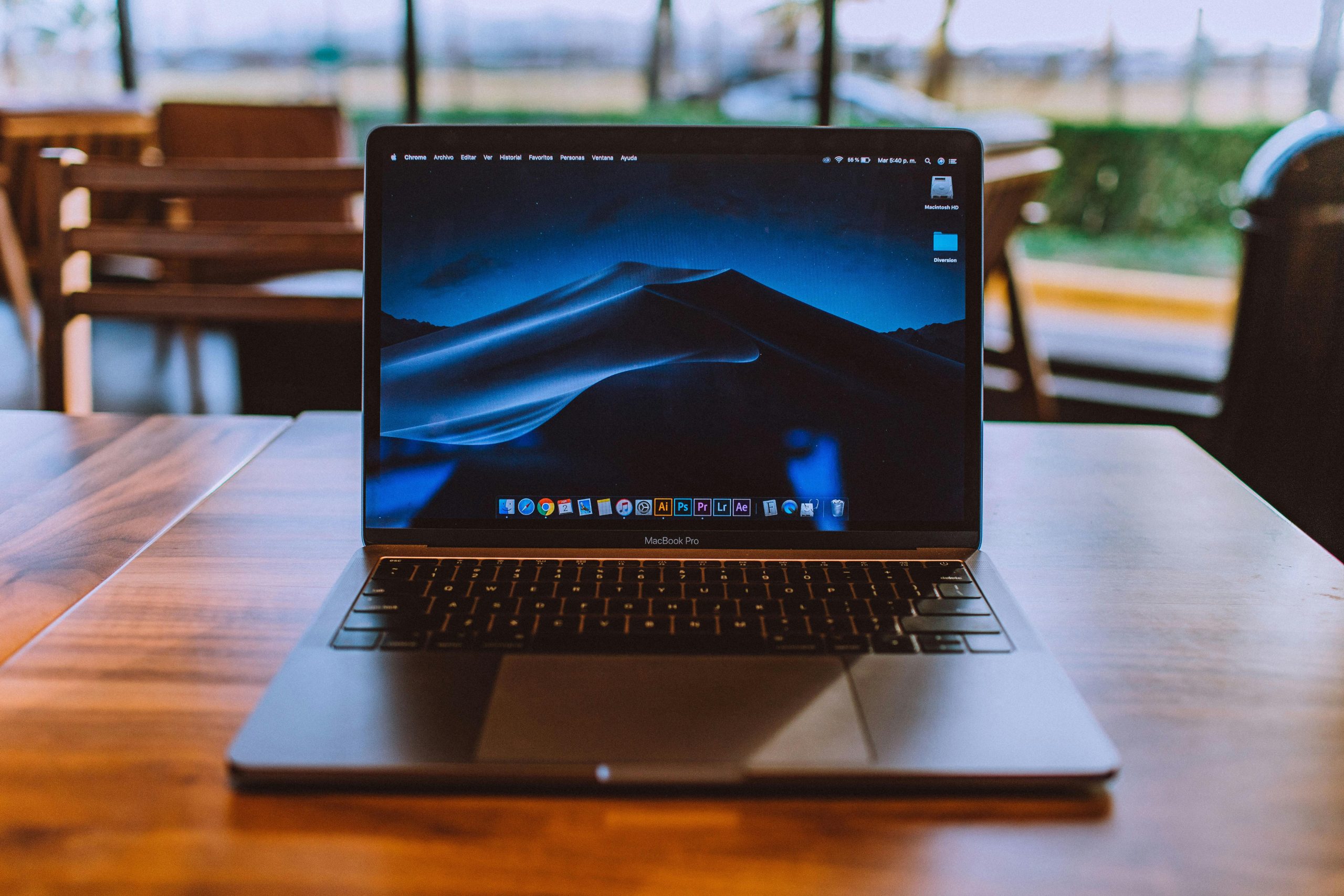

Fingerprints, dust, and smudges build up fast on your MacBook’s beautiful display, but cleaning it the wrong way can leave scratches, haze, or permanent damage to the anti-reflective coating. Whether you have a MacBook Air, MacBook Pro with Liquid Retina XDR, or the premium nano-texture glass option, the right technique takes just minutes and keeps your screen looking brand new.
This 2026 guide follows Apple’s official recommendations straight from their support documentation, giving you step-by-step instructions that work on every current model. You’ll learn the exact tools Apple approves, what to avoid at all costs, and smart habits that prevent buildup in the first place.
Why Proper MacBook Screen Cleaning Matters More Than You Think
Your MacBook screen is one of the most advanced components Apple makes — with ultra-thin glass, precise coatings, and (on Pro models) mini-LED backlighting. Harsh cleaners or abrasive cloths can etch the surface, reduce clarity, or create permanent streaks that no amount of wiping will fix. Following the correct method protects your investment and maintains the vibrant colors and sharpness you paid for.
Tools You Actually Need for Safe Cleaning
You don’t need expensive kits. Apple recommends just three simple items:
- A soft, lint-free microfiber cloth (the same type used for eyeglasses works perfectly).
- Distilled or filtered water.
- For stubborn spots only: 70% isopropyl alcohol (IPA) solution.
Keep a dedicated microfiber cloth in your bag or desk drawer so it’s always ready and free of dust or debris.
Preparing Your MacBook Before You Start Cleaning
Always begin by shutting down your MacBook completely and unplugging the charger plus any cables. This prevents accidental power issues and lets you see smudges more clearly with the screen off. Place the laptop on a flat, stable surface to avoid pressure on the display while you work.
The Official Apple Step-by-Step Method to Clean Your MacBook Screen
Here’s the exact process Apple endorses for every MacBook model in 2026:
- Shut down and unplug your MacBook.
- Lightly dampen one corner of your microfiber cloth with water only — it should feel barely moist, never dripping.
- Gently wipe the screen in straight lines or soft circular motions using minimal pressure.
- Immediately buff the surface dry with the other (completely dry) side of the cloth.
- Let the screen air-dry for 30–60 seconds before closing the lid.
This water-only approach safely removes everyday dust and light fingerprints without harming coatings.
Tackling Tough Smudges and Fingerprints the Right Way
For stubborn marks that water alone won’t touch, Apple allows a 70% isopropyl alcohol solution on the cloth (never sprayed directly onto the screen). Moisten a small area of the microfiber cloth, wipe gently, then dry immediately. This method works on both standard Liquid Retina displays and XDR panels.
Special Instructions for Nano-Texture Glass Displays
If your MacBook Pro has the optional nano-texture display (available on higher-end 2026 models), use the polishing cloth that came with your laptop. For occasional deep cleaning, lightly moisten that same cloth with 70% isopropyl alcohol. Avoid regular microfiber cloths or excessive pressure — the nano-texture finish scatters light beautifully but is more delicate than standard glass.
Common Mistakes That Can Permanently Damage Your MacBook Screen
Never do these:
- Spray any liquid directly onto the screen.
- Use paper towels, tissues, or household cloths (they contain wood fibers that scratch).
- Apply window cleaners, ammonia-based sprays, or disinfectant wipes.
- Use compressed air near the display edges.
- Wipe while the MacBook is powered on and hot.
These errors are the leading cause of cloudy screens and coating damage reported by users.
How Often Should You Clean Your MacBook Screen?
Light dusting with a dry microfiber cloth takes 10 seconds and should happen every 2–3 days. A full water-dampened clean is ideal once a week or whenever you notice noticeable smudges. If you travel frequently or work in dusty environments, increase the frequency slightly.
Building a Quick Daily Maintenance Routine
Make cleaning effortless by developing simple habits:
- Wipe the screen every time you close the lid.
- Keep your microfiber cloth clipped inside the laptop sleeve.
- Use a screen protector only if it’s a high-quality, matte-finish option designed for MacBook displays (though most users find it unnecessary with proper care).
These small steps dramatically reduce how often you need a deeper clean.
Cleaning the Entire MacBook While You’re Already Set Up
While the screen is your focus, use the same damp microfiber cloth to gently wipe the aluminum body, keyboard, and trackpad. For the keyboard, you can use a dry soft-bristled brush or compressed air to remove crumbs first. This keeps your whole MacBook looking pristine in one short session.
When to Consider Professional Cleaning or Apple Support
If you notice haze, scratches, or discoloration that cleaning doesn’t fix, stop and visit an Apple Store or authorized service provider. They have specialized tools and can inspect for underlying coating issues covered under warranty in some cases.
Conclusion
Learning how to clean MacBook screen the right way is one of the easiest and most effective ways to protect your expensive investment and enjoy sharp, vibrant visuals for years. By following Apple’s straightforward water-and-microfiber method — and steering clear of the common mistakes outlined above — you’ll keep your Liquid Retina or XDR display looking factory-fresh.
Make it a quick habit rather than a chore, and your MacBook will reward you with stunning picture quality every time you open it. A clean screen isn’t just about looks — it’s about preserving the premium experience Apple designed.
Questions About How to Clean MacBook Screen
Can I use disinfectant wipes on my MacBook screen?
No. Apple does not recommend them because they can contain chemicals that damage the anti-reflective coating. Stick to water or 70% isopropyl alcohol on a cloth.
Is it safe to use screen cleaning sprays made for laptops?
Only if they are specifically labeled as safe for Apple displays and you spray the cloth, never the screen. Most generic sprays contain ingredients Apple advises against.
How do I clean under the screen or around the bezels?
Use a dry microfiber cloth or soft brush. Never force liquid into the edges or hinge area.
Does the cleaning method differ between MacBook Air and Pro models?
The basic steps are identical. The only difference is extra care with nano-texture glass on certain Pro models.
Will cleaning remove the oleophobic coating over time?
Gentle water cleaning does not remove the coating. Harsh chemicals and abrasive materials are what cause gradual wear.
Can I clean the screen while the MacBook is turned on?
It’s safer to shut down first. Cleaning with the display on can make smudges harder to see and increases the risk of pressing too hard.
