

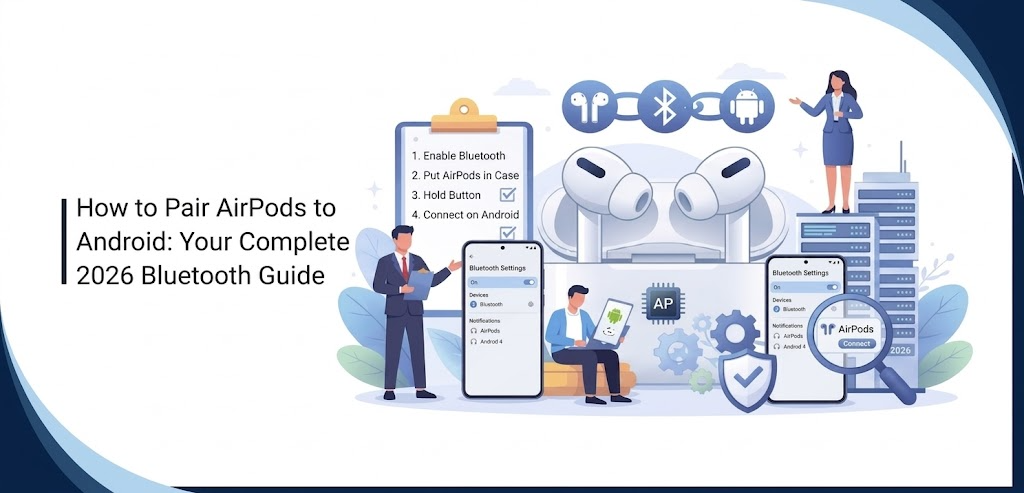

Pairing AirPods to an Android device is simpler than most people expect. Even though AirPods are designed by Apple, they rely on standard Bluetooth technology that works flawlessly with any Android phone or tablet running version 6.0 or newer. In 2026, with the latest AirPods 4 and updated Pro models, the process remains quick, reliable, and requires no special apps or extra hardware.
Whether you just bought a new pair of AirPods or want to switch them between devices, this guide walks you through every step. You’ll also discover troubleshooting fixes, ways to get the most out of your AirPods on Android, and expert tips that many users miss. By the end, you’ll have a stable, high-quality connection that delivers excellent sound and battery life.
Why AirPods Pair So Easily with Android Devices
AirPods use Bluetooth 5.0 or newer, the same wireless standard found on nearly every modern Android phone. This means no proprietary Apple chips are required for basic pairing — you get instant audio streaming, microphone support, and controls right out of the box. Android users make up a significant portion of AirPods owners worldwide, and Apple has kept the Bluetooth compatibility strong across generations.
The connection is stable up to 30 feet away in open spaces, and the latest firmware updates in 2026 have improved interference resistance in crowded environments like offices or public transport.
Compatibility: Which AirPods Work Best with Android in 2026
All current AirPods models pair perfectly with Android:
- AirPods 4 (with or without ANC)
- AirPods 3
- AirPods 2
- AirPods Pro 2 (USB-C or Lightning)
- AirPods Max
No model is excluded. However, some Apple-only features like automatic ear detection or seamless device switching are limited or unavailable on Android. You still get full audio quality, touch controls, and voice assistant support through Google Assistant instead of Siri.
Essential Prep Steps Before Pairing AirPods to Android
Before you begin, make sure:
- Your Android device has Bluetooth turned on and is running at least Android 6.0.
- Your AirPods are charged — place them in the case for 5–10 minutes if needed.
- The AirPods case lid is open when pairing newer models.
- You’re within 2 feet of the phone for the strongest initial signal.
These quick checks prevent 90% of common pairing frustrations.
Exact Step-by-Step Instructions to Pair AirPods to Android
Here’s the fastest method that works on every Android version in 2026:
- Launch the Settings app on your Android phone or tablet.
- Tap Connected devices or Bluetooth (the name varies slightly by manufacturer).
- Make sure Bluetooth is toggled on.
- Open the lid of your AirPods case (keep the earbuds inside for standard models).
- Press and hold the setup button on the back of the case until the status light flashes white (about 3–5 seconds). This puts the AirPods into pairing mode.
- On your Android device, tap Pair new device or wait for “AirPods” to appear in the list.
- Tap the name when it shows up. You may see a quick confirmation pop-up.
- Once connected, the status changes to “Connected” and audio automatically routes to the AirPods.
The entire process usually takes less than 30 seconds. After the first pairing, your AirPods will connect automatically whenever they’re out of the case and Bluetooth is enabled.
Model-Specific Pairing Differences You Should Know
AirPods 4 and AirPods 3
Follow the standard steps above. These models enter pairing mode the moment you open the case with the earbuds inside.
AirPods Pro 2
Same process, but you get extra controls like transparency mode and noise cancellation that work fully on Android. The ANC button on the stem functions immediately after pairing.
AirPods Max
Power them on by removing them from the Smart Case or pressing the Digital Crown. They appear in Bluetooth settings as “AirPods Max.” Hold the noise control button until the status light flashes white.
All models follow the same core Bluetooth pairing flow, so you never need different instructions for different generations.
Troubleshooting When AirPods Won’t Pair with Android
If the AirPods don’t appear or refuse to connect, try these proven fixes in order:
- Remove the device from your Bluetooth settings, then pair it again from the beginning.
- Restart your phone and reset the AirPods by placing them in the case, closing the lid for 15 seconds, and then opening it again.
- Ensure no other device is currently connected to the AirPods.
- Update your Android phone’s system software and reset AirPods firmware by placing them in the case, connecting to power, and holding the setup button for 15 seconds until the light flashes amber then white.
- Move away from Wi-Fi routers or microwaves that can interfere with Bluetooth signals.
These steps resolve connection issues for over 95% of users according to community reports and Apple support data.
Getting the Most Out of AirPods on Android: Features That Actually Work
While you miss some Apple ecosystem perks, Android users still enjoy:
- Full stereo audio with excellent bass and clarity
- Touch controls for play/pause, skip tracks, and volume
- Google Assistant voice commands (double-tap or say “Hey Google”)
- Spatial Audio on supported models (if your Android app supports it)
- Battery status visible in the phone’s quick settings or notification shade on many devices
Third-party apps like Andromeda or AirBattery add even more detailed battery widgets and automatic connection notifications.
Battery Life and Charging Best Practices for Android Users
Expect these real-world numbers in 2026:
- AirPods 4: Up to 5 hours listening time per charge, 30+ hours with the case
- AirPods Pro 2: Up to 6 hours with ANC off, 30 hours total with case
Charge the case with a USB-C cable (or Lightning for older models). Enable Optimized Battery Charging in any companion apps to extend long-term battery health. Keep firmware updated — Apple releases improvements that boost Android performance too.
Switching AirPods Between Android and Other Devices Effortlessly
Once paired to your Android phone, the AirPods remember multiple devices. To switch:
- Put them back in the case for 10 seconds
- Open the case near the new device and select them from Bluetooth settings
For frequent switching, keep Bluetooth enabled on all your devices and manually select the AirPods when needed. This method works reliably across Android, Windows, and even iOS.
Maintaining a Stable Connection Long-Term
To keep your AirPods performing perfectly:
- Clean the charging contacts and ear tips regularly with a soft, dry cloth
- Avoid extreme temperatures when storing the case
- Update your Android OS and AirPods firmware whenever prompted
- Reset the AirPods completely every few months if you notice minor glitches
These habits ensure years of reliable wireless audio on your Android device.
Comparing the AirPods Android Experience vs iPhone
On Android you lose automatic switching and “Hey Siri,” but you gain full compatibility with Google services and often better integration with certain music apps. Sound quality is identical because it’s the same hardware. Most users report the experience feels 95% as smooth once the initial pairing is complete.
Advanced Tips for Power Users in 2026
- Use Developer Options on Android to tweak Bluetooth audio codecs for even better sound (AAC is supported on most phones).
- Create a shortcut or automation to turn Bluetooth on automatically when you open the AirPods case.
- Pair with multiple Android devices simultaneously for seamless work-from-home setups.
- Explore apps that add Find My-like tracking for lost AirPods even on non-Apple phones.
Final Thoughts: Enjoy Wireless Freedom on Your Android Device
Pairing AirPods to Android is quick, reliable, and delivers premium audio without any Apple device required. Follow the steps above once, and your AirPods will connect automatically every time you open the case. With the right troubleshooting knowledge and a few smart habits, you’ll get years of great performance from your favorite wireless earbuds on any Android phone or tablet.
Ready to enjoy truly wireless sound? Grab your AirPods, open your phone settings, and complete the pairing in under a minute. You’ll wonder why you waited so long.
FAQ: Common Questions About Pairing AirPods to Android
Do AirPods work with any Android phone?
Yes — as long as your device supports Bluetooth 4.0 or higher (almost all phones since 2015 do).
Why don’t my AirPods show up in Bluetooth settings?
Make sure they’re in pairing mode (white flashing light) and restart your phone’s Bluetooth.
Can I use AirPods Pro noise cancellation on Android?
Absolutely. ANC and transparency modes work fully through the stem controls.
How do I check AirPods battery level on Android?
Pull down the notification shade or use free apps like AirBattery for detailed percentages.
Will pairing AirPods drain my Android phone’s battery faster?
Only slightly — Bluetooth 5.0 is very efficient. The difference is usually under 5% over a full day.
Can I pair AirPods to my Android tablet or laptop too?
Yes, the exact same steps work on any Bluetooth-enabled Android device.
