


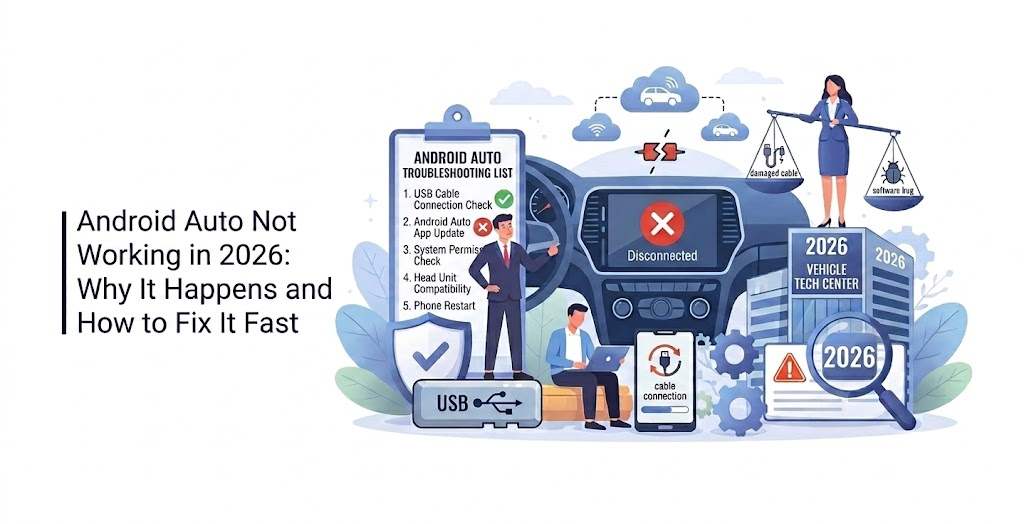
Android Auto remains one of the most popular ways to bring your phone’s apps safely to your car’s dashboard, yet connection failures continue to frustrate drivers even in 2026. Whether you’re dealing with a sudden black screen, endless “connecting” messages, random disconnects, or the app refusing to launch after an Android 16 update, you’re not alone.
Google and car manufacturers have improved stability, but issues still spike after OS updates, with certain models like the Samsung Galaxy S26 and Pixel phones reporting higher failure rates. The good news? Most “Android Auto not working” problems have straightforward, proven solutions that take just minutes to try.
This complete 2026 troubleshooting guide walks you through every common cause and fix — from basic restarts to advanced cache clears and head-unit resets — so you can get back on the road safely and quickly.
Understanding the Most Common Android Auto Failures in 2026
In early 2026, reports surged about Android Auto failing after Android 16 updates on Pixel and Samsung devices. Symptoms include:
- Frequent disconnects during drives
- Failure to launch automatically
- Audio cutting out or no sound
- Black screen on the head unit
- Wireless pairing that works once then never again
These problems often trace back to software conflicts, outdated head-unit firmware, or corrupted app data. Wireless Android Auto is especially prone to interference, while wired setups suffer from cable or port issues.
Quick Diagnostic: Is Your Issue Wired, Wireless, or App-Related?
Before diving into fixes, identify the trigger:
- Wired only → Check your USB cable and phone port first.
- Wireless only → Focus on Bluetooth/Wi-Fi settings and pairing history.
- Both → Likely an app update, phone OS conflict, or head-unit problem.
Knowing this narrows your troubleshooting to the fastest solution.
Restart Everything: The Most Effective Fix for Common Android Auto Issues
The simplest step resolves over 40% of reported cases.
- Turn off your car completely (including ignition) and wait 30 seconds.
- Restart your phone (hold power button → Restart).
- Open the driver’s door and wait for any car system lights to turn off.
- Reconnect your phone and test Android Auto.
This clears temporary glitches in both the phone and vehicle’s infotainment system. Many 2026 owners report immediate success after a full power cycle.
Check and Replace Your USB Cable for Wired Android Auto Failures
Cheap or charging-only cables are a leading cause of wired connection failures. Android Auto requires a high-quality data cable that supports full USB data transfer.
- Use another cable, ideally the original one that came with your phone.
- Clean the USB port on your phone and car with compressed air.
- Test the cable on a computer to confirm it transfers files.
In 2026, users with Galaxy S26 models discovered that certain braided cables triggered error codes. Switching to a certified USB-C cable fixed the issue instantly for most.
Clear the Cache and Stored Data in the Android Auto App
Corrupted app data is a frequent culprit after system updates.
- Go to Settings → Apps → Android Auto.
- Tap Storage & cache → Clear cache.
- If that doesn’t help, tap Clear storage (you won’t lose your settings).
- Force stop the app, then restart your phone.
Many users on Reddit and Google support forums in 2026 confirmed this resets problematic connections, especially after Android 16 patches.
Uninstall and Reinstall Android Auto Updates
Google occasionally pushes buggy updates that break compatibility.
- Open the Google Play Store.
- Search for Android Auto.
- Tap the three-dot menu → Uninstall updates.
- Restart your phone.
- Reinstall the latest version from the Play Store.
This temporary rollback has fixed launch and connection issues for Pixel and Samsung users reporting problems since March 2026.
Update Your Phone, Car Software, and Head Unit Firmware
Outdated software is the second-most common reason Android Auto stops working.
- Check for Android OS updates in Settings → System → System update.
- Visit your car manufacturer’s website or use the in-car update menu (common in 2025–2026 models from Ford, Chevrolet, Toyota, and Honda).
- Ensure Google Play Services and the Android Auto app are fully updated.
Car makers like Chevrolet and Ford explicitly recommend updating both phone and vehicle software before troubleshooting further.
Fix Wireless Android Auto Connection Drops
Wireless setups fail more often due to interference or pairing conflicts.
- Forget the car in your phone’s Bluetooth and Wi-Fi settings.
- Turn off Bluetooth and Wi-Fi on your phone, wait 10 seconds, then turn them back on.
- In Android Auto settings, remove the vehicle from your car history.
- Re-pair by starting the car and allowing the phone to detect it automatically.
For stubborn wireless issues on 2026 Subaru Outback or Honda CR-V models, users found success by disabling nearby Wi-Fi networks or other Bluetooth devices temporarily.
Address Phone-Specific Issues on Samsung Galaxy S26 and Pixel Devices
Samsung Galaxy S26 and recent Pixel phones saw a notable spike in Android Auto problems after early 2026 updates.
- Delete or disable the Samsung SmartThings app (multiple users reported it interfering).
- Turn off any battery optimization for Android Auto.
- Manually install an older stable version of Android Auto if the latest one crashes.
Google has acknowledged some connectivity bugs and is rolling out server-side fixes, but these quick phone-side tweaks restore functionality immediately for many owners.
Reset Your Car’s Infotainment System as a Last Resort
When nothing else works, a head-unit reset often resolves deep glitches.
- Consult your owner’s manual for the exact sequence (usually holding the power button or navigating the settings menu).
- Some 2026 models require opening the driver’s door after restart.
This step fixed persistent disconnects for owners of 2026 Ford, Chevrolet, and Subaru vehicles.
Prevent Future Android Auto Problems With These Best Practices
- Use only high-quality, short USB cables for wired connections.
- Keep Android Auto, Google Play Services, and your phone OS updated.
- Restart your phone weekly to clear background conflicts.
- Avoid running battery-draining apps (like heavy navigation) alongside Android Auto.
- For wireless users, park away from strong Wi-Fi routers when possible.
Following these habits dramatically reduces recurrence rates.
When to Contact Support or Consider Hardware Solutions
If you’ve tried every fix and Android Auto still refuses to work:
- Reach out to your car manufacturer’s support with your exact model year and phone details.
- Test with a different Android phone to isolate whether the issue is phone- or car-related.
- Consider a reliable wireless adapter (such as AAWireless or Ottocast) as a stable workaround for older head units.
Advanced Tips for Power Users in 2026
Enable Developer Options on your phone (tap Build Number 7 times in Settings → About Phone) and adjust Bluetooth audio codecs for better stability. Some users also report success by disabling 5G and forcing LTE during drives.
Get Android Auto Working Again and Enjoy Safer Drives
Android Auto not working doesn’t have to ruin your commute. In most 2026 cases, a simple restart, cache clear, or cable swap brings everything back online within minutes. By following the step-by-step fixes above — tailored to both wired and wireless setups — you’ll regain access to navigation, music, messages, and calls without distraction.
Start with the quickest solutions (restart and cable check), then move to app-specific fixes if needed. Once it’s running smoothly again, adopt the prevention habits outlined here to keep it that way. Safe driving starts with reliable tech — and now you have the exact tools to make Android Auto work every time you get behind the wheel.
FAQ: Android Auto Not Working – Your Most-Asked Questions Answered
Why did Android Auto stop working after an Android 16 update?
The March 2026 update introduced compatibility conflicts on certain Pixel and Galaxy phones. Clearing cache or rolling back the Android Auto app usually restores it.
Does Android Auto work with every car in 2026?
It supports over 500 models, but wireless functionality depends on your specific head unit. Check compatibility at android.com/auto.
Is there a difference between wired and wireless fixes?
Yes — wired issues are usually cable- or port-related, while wireless problems stem from Bluetooth/Wi-Fi pairing and interference.
Will clearing data delete my Android Auto settings?
No permanent data is lost. You’ll simply need to re-pair your car once.
Can a bad USB cable really break Android Auto?
Absolutely. Many 2026 users fixed connection errors instantly by swapping to a data-capable cable.
How do I know if my head unit needs a firmware update?
Check your car’s settings menu or manufacturer app. New 2026 models often notify you automatically.
Should I factory reset my phone to fix Android Auto?
Only as a last resort after trying all other steps — it usually isn’t necessary.
Are there any ongoing bugs Google is fixing in 2026?
Yes. Google confirmed connectivity issues on Pixel and Samsung devices and is pushing server-side improvements.
