

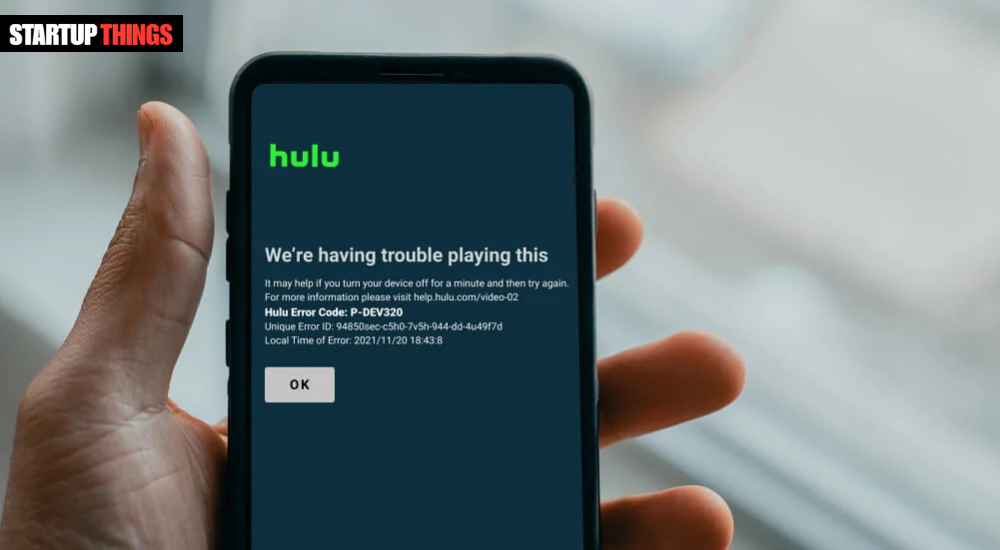

You sit down to watch your favorite show on Hulu and instead get hit with error code P-DEV320 — no stream, no explanation, just a broken screen. If this sounds familiar, you’re dealing with one of Hulu’s more specific device-level playback errors, and the good news is that it almost always has a clear, fixable cause.
Unlike more generic Hulu errors, P-DEV320 is a device-specific playback failure. The ‘P-DEV’ prefix is Hulu’s way of flagging that the problem is rooted in the device or its interaction with the Hulu platform — rather than being a pure server-side issue. This narrows the troubleshooting significantly and means a solution is typically well within reach.
This guide covers every known cause of P-DEV320, with detailed step-by-step fixes organized by device type so you can target exactly the right solution for your setup.
Decoding P-DEV320: What This Error Code Is Really Telling You
The P-DEV320 error code sits within Hulu’s broader family of P-DEV errors (which also includes P-DEV318, P-DEV322, and others). All P-DEV codes share a common root: a failure in the communication channel between the Hulu app running on your device and Hulu’s content delivery or authentication servers.
P-DEV320 specifically tends to surface when the device’s Hulu app encounters a problem loading or maintaining the video stream after initial authentication has passed. This distinguishes it from login errors or subscription errors, which appear before you even attempt playback. With P-DEV320, Hulu knows who you are and that you have a valid subscription — it just cannot successfully deliver the video stream to your device.
The three most common underlying causes are: a corrupted or outdated Hulu app installation on the device, a network connectivity problem that disrupts the content delivery pipeline mid-initialization, and a device firmware or OS issue that creates an incompatibility with Hulu’s current streaming protocol. Each of these has a distinct fix path.
Before You Start: Rule Out a Hulu Outage
P-DEV320 can appear simultaneously across many users during a Hulu service disruption, which would make any device-level troubleshooting pointless until the outage clears. Take 60 seconds to verify Hulu’s operational status before diving into fixes.
• Visit downdetector.com/status/hulu to check for real-time outage reports from other users.
• Search ‘Hulu down’ or ‘Hulu P-DEV320’ on X (Twitter) to see if others are reporting the same error right now.
• Check Hulu’s official social media accounts — they typically post service status updates during significant disruptions.
If a service disruption is confirmed, your only action is to wait. Hulu’s engineering team typically resolves most outages within one to two hours. If no outage is reported, proceed to the device-level fixes below.
Fix 1: Force Restart the Hulu App and Reboot Your Device
A complete app and device restart should always be the first troubleshooting step for P-DEV320. Streaming apps maintain persistent background states — cached session data, buffered content metadata, DRM session handles — that can become corrupted without any visible warning. A full restart clears all of this cleanly.
• Force-close Hulu completely. Do not just press the back button — use your device’s app manager to fully terminate the app process.
• Power your device off entirely. For streaming sticks and smart TVs, unplug from the power source rather than using standby mode, which does not fully reset the device.
• Wait a full 60 seconds before powering back on. This ensures capacitors fully discharge and all memory is cleared.
• Once the device has fully booted, open Hulu as the first app — before launching anything else — and attempt playback.
This single step resolves P-DEV320 for a large portion of users experiencing a first-time or intermittent occurrence of the error. If the error returns consistently after a restart, the cause is deeper than a temporary app state issue.
Fix 2: Clear the Hulu App Cache and Stored Data
Cached data corruption is among the most reliable causes of persistent P-DEV320 errors. The Hulu app stores a significant amount of local data — authentication tokens, content manifests, playback session data — and any corruption in these files can prevent streams from loading correctly. Clearing the cache wipes this stored data and forces the app to rebuild it fresh from Hulu’s servers.
On Android Phones and Tablets
• Go to Settings > Apps (or Application Manager) > Hulu.
• Tap Storage & Cache.
• Tap Clear Cache first, then relaunch Hulu and test playback.
• If P-DEV320 persists, return and tap Clear Data — this fully resets the app (you will need to log back in).
On Amazon Fire TV and Fire TV Stick
• From the home screen, go to Settings > Applications > Manage Installed Applications.
• Select Hulu from the list.
• Tap Clear Cache, then Clear Data.
• Relaunch Hulu, sign back in, and test.
On Roku Devices
Roku does not provide a direct per-app cache clearing option. Instead, use the Roku secret cache-clearing sequence: from any screen (Hulu open or home screen), press Home 5 times rapidly, then Up once, Rewind twice, and Fast Forward twice. The screen will go dark briefly as the system clears its cache and refreshes. After it restarts, reopen Hulu and test playback.
Alternatively, go to Settings > System > System Restart for a full system reboot that achieves a similar effect.
On Samsung, LG, and Sony Smart TVs
• Samsung: Navigate to Settings > Support > Device Care > Manage Storage, find Hulu, and select Clear Cache.
• LG webOS: Go to Settings > General > System > Additional Settings > Application Manager, select Hulu, and tap Clear Cache.
• Sony Android TV / Google TV: Go to Settings > Apps > See All Apps > Hulu > Clear Cache and Clear Data.
On PlayStation 4 and PlayStation 5
PlayStation does not offer a direct app cache clear for individual apps. The most effective approach is to delete the Hulu app and reinstall it: go to the Game Library or Media tab, highlight Hulu, press Options, and select Delete. Then reinstall from the PlayStation Store. Additionally, clearing the PS4/PS5 system cache (power off completely, then hold the power button until you hear two beeps to boot into Safe Mode, then select option 3 — Clear Cache and Rebuild Database) can help resolve deeper system-level conflicts.
On Xbox One, Xbox Series X, and Xbox Series S
• Press the Xbox button, go to My Games & Apps > Apps.
• Highlight Hulu, press the Menu button (the three-line button), and select Manage App & Add-Ons.
• Select Saved Data and clear any Hulu-related saved data.
• For a deeper fix, go to Settings > Devices & Connections > Blu-Ray > Persistent Storage > Clear Persistent Storage, which clears the system-wide cache for streaming apps.
In a Web Browser
If P-DEV320 appears on hulu.com in a browser, clear cookies and cached files specifically for the Hulu domain. In Google Chrome: go to Settings > Privacy and Security > Delete Browsing Data. Select Cookies and other site data and Cached images and files, set the time range to All time, and click Delete Data. Then navigate back to hulu.com in a fresh tab. Also try loading Hulu in a private or incognito window — if it works there, a browser extension is likely causing the conflict.
Fix 3: Diagnose and Improve Your Network Connection
P-DEV320 has a strong association with network instability. Hulu’s streaming system uses adaptive bitrate technology, which adjusts video quality based on available bandwidth — but if the connection drops below a critical threshold or becomes too erratic, the stream fails entirely rather than degrading gracefully, and P-DEV320 can appear.
• Run a speed test at fast.com while on the same network as your streaming device. Hulu requires a minimum of 3 Mbps for SD, 8 Mbps for HD, and 16 Mbps for 4K. Hulu with Live TV requires at least 8 Mbps for a stable live stream.
• Check your Wi-Fi signal strength on the device. A weak signal (shown as one or two bars) is a common culprit. Move the device closer to the router or switch to a wired Ethernet connection where possible.
• Restart your modem and router: unplug both from power, wait 60 seconds, plug the modem in first and wait for it to fully reconnect, then plug the router in. Allow two minutes before testing Hulu again.
• If you are using a Wi-Fi extender or mesh satellite node, try connecting directly to the main router to rule out extender-related packet loss or latency issues.
• Check how many devices are actively streaming, downloading, or video-calling on your network. High concurrent usage can saturate your bandwidth and cause streaming failures even on otherwise fast connections.
Fix 4: Update the Hulu App and Your Device Firmware
Running an outdated version of either the Hulu app or your device’s operating system is a well-documented trigger for P-DEV320. Hulu regularly updates its streaming protocol, DRM implementation, and content delivery mechanisms — and older app versions may not be compatible with the current server-side behavior.
• On mobile devices: open the App Store (iOS) or Google Play Store (Android), search for Hulu, and install any pending update.
• On Roku: go to the Hulu channel page in the Roku Channel Store and look for an Update button.
• On Fire TV: open the Amazon Appstore, search Hulu, and select Update if available. You can also enable automatic app updates in Appstore Settings.
• On smart TVs: check the TV’s system settings for both app updates (within the TV’s app store) and firmware/system software updates (usually under Settings > Support or Settings > System).
• On gaming consoles: check for system software updates from the settings menu, and update the Hulu app from the respective console store.
After updating, always perform a full device restart before testing — some updates require a reboot to take full effect, and launching Hulu immediately after an update sometimes catches the app in a transitional state.
Fix 5: Disable VPNs, Proxies, and Check DNS Settings
Hulu operates exclusively in the United States and uses geo-verification as part of its content licensing compliance. Its content delivery network (CDN) actively detects VPN traffic, proxy connections, and certain DNS configurations that suggest the viewer is not in an authorized region — and P-DEV320 can be the result when these checks fail.
• Disable any VPN on your device or router completely — not just disconnected from a server, but fully turned off.
• If your router uses a custom DNS (such as Cloudflare’s 1.1.1.1, Google’s 8.8.8.8, or a smart DNS service), temporarily switch back to automatic DNS (provided by your ISP) to rule out DNS-based geo-blocking conflicts.
• Check if your router’s firmware has any built-in privacy or ad-blocking DNS features enabled — some modern routers include these by default and they can interfere with Hulu’s CDN routing.
Fix 6: Check Your Hulu Account and Subscription Status
While P-DEV320 is primarily a device-level playback error, account-related issues can contribute to it in specific circumstances — particularly if a payment recently failed, a subscription tier changed, or the account has reached its simultaneous stream limit.
• Log into your Hulu account at hulu.com on a browser and confirm your subscription is active and in good standing under Account > Your Subscription.
• Check how many streams are currently active on your account. Hulu’s base plan allows two simultaneous streams — if two other devices are already streaming, a third will receive a playback error. Hulu’s Unlimited Screens add-on removes this restriction for home network streams.
• Log out of all devices from your account page (Account > Privacy and Settings > Log Out of All Devices), then log back in on the affected device only.
This is also a good security check — if someone else is using your Hulu account on other devices without your knowledge, logging out of all devices simultaneously removes their access and ensures you have your full stream allocation available.
When P-DEV320 Appears Only on Live TV Content
If P-DEV320 appears specifically when attempting to watch Hulu + Live TV but not on-demand content, the issue is frequently network bandwidth — Live TV requires a sustained 8 Mbps connection and is more sensitive to latency than on-demand streams, which can buffer ahead. It can also indicate a regional broadcast rights issue with a specific channel in your area. Contact Hulu Support with the specific channel name if the problem is channel-specific rather than general Live TV.
Fix 7: Reinstall Hulu as a Last Resort
If every fix above has failed, a complete uninstall and reinstall of the Hulu app is the final software-level step before concluding the device itself is incompatible or needs hardware-level attention.
• Uninstall Hulu from your device completely through the app manager or settings.
• Restart the device after uninstalling — do not reinstall immediately.
• After the restart, navigate to the appropriate app store and download a fresh copy of Hulu.
• Log in with your credentials and attempt playback before customizing any app settings.
A clean reinstall eliminates any corrupted installation files, outdated cached configurations, or broken app registry entries that survive cache clears but not a full uninstall. If P-DEV320 returns even after a clean reinstall, contact Hulu Support — the issue is either account-level or tied to a known incompatibility with your specific device model.
Wrapping Up
Hulu error code P-DEV320 is firmly in the category of fixable errors. Its device-specific nature actually makes it easier to resolve than more ambiguous Hulu errors — because it tells you exactly where to focus. Start with a full device restart and cache clear, verify your network connection quality, keep both the app and device firmware updated, and disable any VPN or proxy.
Work through the fixes in order, and the vast majority of P-DEV320 cases are resolved before reaching the reinstall step. If the error persists through everything, Hulu Support can investigate account-level or device-compatibility issues that go beyond what local troubleshooting can address. Either way — your stream is coming back.
Frequently Asked Questions (FAQ)
What is the difference between Hulu error P-DEV320 and RUNUNK13?
Both are Hulu playback errors, but they have different scopes. P-DEV320 is a device-specific playback error — the ‘P-DEV’ prefix indicates the issue is tied to the device or its connection to Hulu’s delivery system. RUNUNK13 is a broader unknown runtime error that can occur for a wider range of reasons including server-side issues. P-DEV320 troubleshooting is more focused on the device, app, and network, while RUNUNK13 may sometimes require waiting out a Hulu server issue.
Why does P-DEV320 only happen on my smart TV but not my phone?
This confirms the issue is device-specific. Smart TVs often run older or less frequently updated app versions, have more restrictive DRM implementations, or have firmware that develops incompatibilities with streaming services over time. Focus troubleshooting on the TV: clear its Hulu cache, check for a firmware update, and if necessary uninstall and reinstall Hulu from the TV’s app store.
Can P-DEV320 be caused by my internet service provider (ISP)?
Yes, in some cases. Certain ISPs throttle streaming traffic or have routing issues with Hulu’s CDN nodes that can cause P-DEV320. If every other streaming service works fine but Hulu consistently fails with this error, and you have ruled out all device and app causes, contact your ISP. You can also test by temporarily using your phone’s mobile hotspot — if Hulu works on the hotspot but not your home Wi-Fi, the issue is with your ISP or home router configuration.
Does P-DEV320 mean my device is not compatible with Hulu?
Not necessarily. P-DEV320 is most often a temporary software or connectivity issue, not a permanent incompatibility. However, Hulu does periodically drop support for older device models. Check Hulu’s official supported devices list at hulu.com/devices to confirm your device is still officially supported. If it has been removed from the supported list, the P-DEV320 error may be permanent on that device.
How do I contact Hulu Support about P-DEV320?
Visit help.hulu.com to access Hulu’s support options, including live chat and callback requests. When contacting support, provide your account email, the device make and model, the exact error code (P-DEV320), the content you were trying to watch, and a list of troubleshooting steps you have already tried. This helps the support agent skip basic steps and focus on account or server-level diagnostics.
