

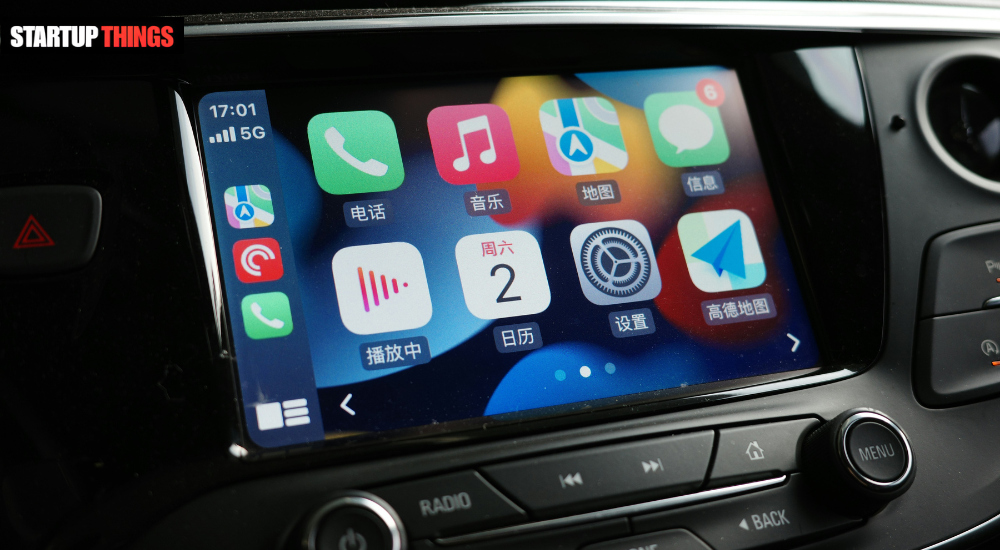

Apple CarPlay is one of the most convenient features in modern vehicles — it mirrors your iPhone’s interface on your car’s infotainment screen, giving you navigation, music, calls, and Siri at a glance. But when Apple CarPlay stops working, it can be surprisingly difficult to diagnose.
The problem could be your iPhone, your cable, your car’s head unit, or even a single iOS setting that got switched off. This guide covers every known fix for CarPlay connectivity issues — for both wired and wireless setups — so you can stop guessing and start driving.
Confirm That CarPlay Is Enabled on Your iPhone
This is the most overlooked cause of CarPlay not working, especially after an iOS update. Apple occasionally resets certain permissions during major updates, and CarPlay can get silently disabled.
• Open the Settings app on your iPhone.
• Tap Screen Time. If Screen Time is enabled, tap Content & Privacy Restrictions.
• Select Allowed Apps and make sure CarPlay is toggled ON.
• Then go back to Settings > General > CarPlay to confirm your car is listed.
If your car does not appear under Settings > General > CarPlay, it has never been paired or the pairing was removed. You’ll need to initiate pairing from scratch through your car’s infotainment system.
The Lightning or USB-C Cable Is Probably the Problem
Wired CarPlay is notoriously sensitive to cable quality. Apple’s CarPlay system requires a data-capable USB cable — not just a charging cable. Many third-party cables, even ones that charge your phone perfectly, lack the data wiring that CarPlay needs.
• Use the original Apple cable that came with your iPhone. This is the most reliable option.
• If using a third-party cable, look for MFi (Made for iPhone) certification on the packaging.
• Inspect the cable for fraying, bent pins, or debris in the Lightning/USB-C connector.
• Try a different USB port in your car — many vehicles have one data port and one charge-only port.
Apple’s own support documentation confirms that damaged or non-certified cables are one of the leading causes of CarPlay connection failures. A $10 certified replacement cable resolves the issue for a significant portion of users.
How to Tell Which USB Port Supports CarPlay
In most vehicles, the CarPlay-compatible USB port is marked with a smartphone or CarPlay icon. If yours aren’t labeled, try each port with a known-good MFi cable. The correct port will trigger the CarPlay interface on your screen within a few seconds of plugging in.
Restart Both Your iPhone and Your Car’s Infotainment System
Before diving deep into settings, a simple restart often resolves temporary software glitches affecting CarPlay. This works for both wired and wireless setups.
Restart your iPhone by holding the side button and volume down (on iPhone X or later), then sliding to power off. Wait 30 seconds before turning it back on. For your car, turn off the ignition completely, wait 60 seconds, then restart. This clears the head unit’s memory and re-initializes Bluetooth and USB systems.
Many CarPlay failures are caused by a cached connection state that gets stuck — a full power cycle on both sides clears this almost instantly.
Check Your iPhone’s Do Not Disturb While Driving Setting
Apple’s Focus and Do Not Disturb features can interfere with CarPlay in unexpected ways, particularly with iOS 15 and later. Specifically, the Driving Focus mode can conflict with CarPlay audio and Siri responses.
• Go to Settings > Focus > Driving.
• Make sure the Driving Focus is not set to activate automatically while connected to CarPlay, if that behavior is causing conflicts.
• Alternatively, customize what the Driving Focus allows — ensure that CarPlay-compatible apps are not restricted.
On iOS 16 and 17, Apple restructured Focus modes, so if you upgraded recently, it’s worth reviewing these settings fresh even if you configured them before.
Update iOS and Your Car’s Firmware
Outdated software on either end is a major CarPlay compatibility killer. Apple releases CarPlay-related fixes in almost every major iOS update, and car manufacturers release head unit firmware updates that address connectivity issues.
To update iOS: Go to Settings > General > Software Update. Install any available update and retry CarPlay afterward. For your car’s firmware: Check your vehicle manufacturer’s website or contact your dealership. Some brands — including Honda, Toyota, and Volkswagen — have had documented CarPlay bugs that were resolved only through firmware patches.
As of iOS 17.4, Apple introduced improved CarPlay wireless stability for vehicles using certain Bluetooth chipsets. If you’re running an older iOS version, upgrading may be all that’s needed.
Forget and Re-Pair Your Car in iPhone Settings
If CarPlay was working before but suddenly stopped, the pairing record may have become corrupted. Removing and re-pairing the connection from scratch is one of the most effective fixes.
• On your iPhone, go to Settings > General > CarPlay.
• Tap your car’s name and select Forget This Car.
• On your car’s infotainment screen, also delete the Bluetooth pairing for your iPhone.
• Reconnect the USB cable (for wired) or initiate a new Bluetooth pairing (for wireless CarPlay).
• Follow the on-screen prompts on your infotainment display to complete pairing.
This full reset of the pairing relationship resolves the majority of cases where CarPlay used to work but suddenly stopped without any apparent cause.
Wireless CarPlay Not Connecting After Re-Pairing
Wireless CarPlay requires both Bluetooth and Wi-Fi to be active on your iPhone simultaneously. Bluetooth handles the initial handshake, while a peer-to-peer Wi-Fi Direct connection carries the actual CarPlay data. If either is disabled — or if your iPhone is connected to a Wi-Fi network that interferes — wireless CarPlay may fail. Make sure Wi-Fi is on even if you’re not connected to a network.
Reset Network Settings on Your iPhone
When CarPlay connectivity is erratic — working sometimes but not others — corrupted network settings are often responsible. A network settings reset clears all Wi-Fi passwords, VPN configurations, and Bluetooth pairings, so be prepared to reconnect to your home network afterward.
Go to Settings > General > Transfer or Reset iPhone > Reset > Reset Network Settings. After the reset, re-pair your car using the steps above. This is a particularly effective fix for wireless CarPlay issues tied to Bluetooth instability.
Disable and Re-Enable Siri (Required for CarPlay)
CarPlay fundamentally requires Siri to be enabled on your iPhone. If Siri was turned off — which can happen after a software update or a family settings change — CarPlay will refuse to launch, often with no error message.
• Go to Settings > Siri & Search.
• Make sure Listen for ‘Hey Siri,’ Press Side Button for Siri, and Allow Siri When Locked are all enabled.
• If Siri was already on, try toggling it off, waiting 10 seconds, and toggling it back on.
This step resolves CarPlay launch failures that have nothing to do with the cable or Bluetooth — the system simply won’t initialize without Siri active.
Check for Interference from Third-Party Apps
Some third-party apps with background permissions — particularly VPNs, call managers, and certain navigation apps — can disrupt the CarPlay session by monopolizing audio routing or network connections.
To test this, force-close all background apps on your iPhone before connecting CarPlay. If CarPlay works after doing this, re-open apps one at a time to identify the culprit. VPN apps are the most common offenders, as they can intercept the local network traffic CarPlay uses for its wireless connection.
Try a Different iPhone If Available
If you have access to another iPhone, test it with your car using the same cable. If the second iPhone connects to CarPlay successfully, the issue is definitively with your iPhone — its settings, hardware port, or software state. This helps narrow the troubleshooting focus significantly.
Conversely, if neither phone works, the issue is almost certainly with the car’s USB port or head unit, and you may need to visit a dealership for a firmware update or hardware inspection.
When to Contact Apple Support or Your Dealership
If you’ve tried every fix above and CarPlay still isn’t working, the problem is likely beyond a simple setting or cable issue. Two scenarios warrant professional support:
• iPhone hardware: The Lightning or USB-C port on your phone may be damaged. Apple stores offer free port inspections and can advise on repair options.
• Car head unit issues: Some infotainment systems develop hardware faults that prevent CarPlay from initializing. Dealerships can run diagnostics and, if necessary, replace the head unit under warranty.
Apple CarPlay compatibility requires iOS 7.1 or later, but optimal performance is tied to iOS 13 and above. If you’re running an older iOS version on an older device, upgrading your OS (or device) may be the only path to reliable CarPlay performance.
Conclusion: CarPlay Is Fixable — Here’s the Priority Order
Apple CarPlay not working is almost always a software, settings, or cable issue rather than a fundamental hardware failure. Start with the simplest fixes — checking CarPlay is enabled, replacing the cable, and restarting both devices — before moving to more involved steps like resetting network settings or re-pairing from scratch.
The vast majority of CarPlay issues are resolved within the first four or five steps of this guide. Stay on the latest iOS version, use a certified cable, and keep both your iPhone and your car’s firmware up to date to prevent future connection problems.
Frequently Asked Questions (FAQ)
Why does CarPlay keep disconnecting while driving?
Intermittent disconnections are usually caused by a faulty USB cable, a loose port connection, or Wi-Fi interference (for wireless CarPlay). Try a new MFi-certified cable and make sure your car’s USB port is clean and free of debris.
Does CarPlay work without an internet connection?
Yes, partially. Wired CarPlay works without cellular data for basic functions like Apple Music (downloaded content) and the phone app. Navigation via Apple Maps requires a data connection unless you’ve downloaded offline maps.
Why is Apple CarPlay not showing up on my screen?
If CarPlay doesn’t appear on your infotainment screen, check that the USB port you’re using supports data (not just charging), that Siri is enabled on your iPhone, and that CarPlay is not restricted under Screen Time settings.
Can I use CarPlay wirelessly if my car only supports wired?
Not natively. However, third-party wireless CarPlay adapters (such as those from Carlinkit or AAWireless) can add wireless CarPlay capability to vehicles that only have wired support. These plug into the car’s USB port and communicate wirelessly with your iPhone.
Does resetting network settings delete my photos or apps?
No. Resetting network settings only clears Wi-Fi passwords, Bluetooth pairings, and VPN configurations. Your apps, photos, messages, and personal data remain completely untouched.
