

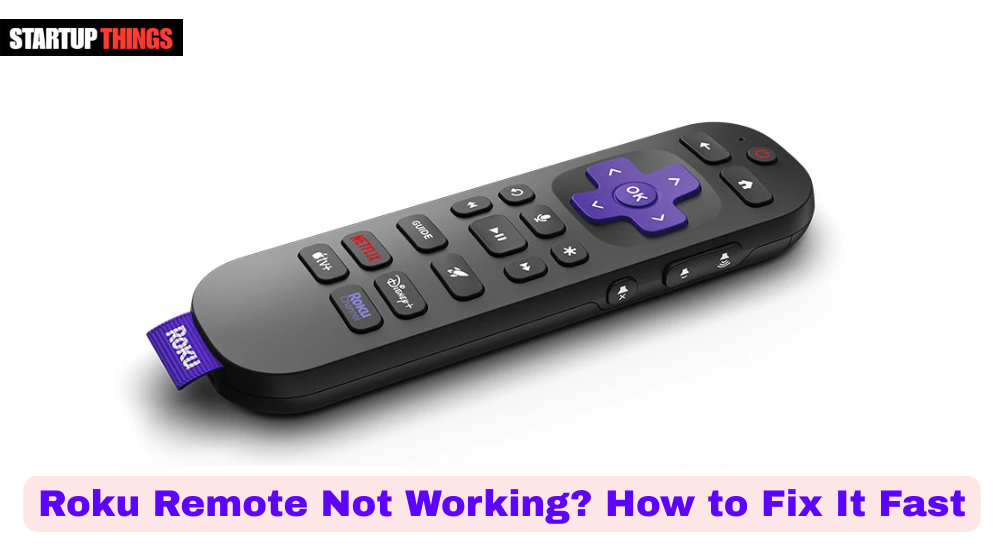

Few things are more frustrating than settling in for a movie night only to find your Roku remote not working. Whether it’s completely unresponsive, lagging, or stuck on one function, remote issues are one of the most common Roku support complaints — and most of the time, they’re very fixable.
This guide walks you through every proven solution, from quick resets to advanced re-pairing methods, for both standard IR Roku remotes and the Enhanced/Voice remotes that use Wi-Fi Direct. You don’t need to be tech-savvy to follow these steps — just work through them in order and you’ll likely have your remote working again within minutes.
First, Identify Which Type of Roku Remote You Have
Before jumping into fixes, it helps to know which remote you’re dealing with. Roku uses two distinct remote types, and the troubleshooting process differs between them.
Standard IR (Infrared) Remotes require a clear line of sight to the Roku device. They do not need Wi-Fi to function and cannot be used with the Roku mobile app as a replacement pairing tool. Enhanced ‘Point Anywhere’ Remotes use Wi-Fi Direct, meaning they pair directly to your Roku device and work without line-of-sight. These are the remotes with a pairing button inside the battery compartment.
You can tell the difference easily: pop open the battery cover. If you see a pairing button, you have an Enhanced remote. No button? That’s a standard IR remote.
Dead or Weak Batteries Are the Most Common Culprit
According to Roku’s own support data, the majority of ‘remote not responding’ complaints trace back to low or improperly inserted batteries. This sounds almost too simple, but it’s the step most people skip.
• Remove the batteries completely and wait 30 seconds before reinserting them.
• Use fresh alkaline batteries — rechargeable batteries often deliver inconsistent voltage that causes Roku remotes to behave erratically.
• Make sure the batteries are seated correctly with the positive and negative terminals aligned as marked.
• Clean the battery contacts with a dry cotton swab if you notice any corrosion.
If the remote works briefly after fresh batteries and then stops again, the issue is likely signal interference or a pairing problem rather than the batteries themselves.
How to Restart Your Roku Device Without the Remote
If your remote is completely unresponsive, you can restart your Roku device without it. A system restart clears temporary memory issues and re-establishes device communication — and it’s often all that’s needed.
Use the Roku Mobile App: Download the free Roku app on iOS or Android. Once connected to the same Wi-Fi network as your Roku, the app acts as a full-featured remote. Navigate to Settings > System > System Restart.
Unplug the Power Cable: If you cannot use the app, simply unplug your Roku device from the power source, wait at least 10 seconds, and plug it back in. This performs a cold reboot and is safe to do anytime.
Use Physical Buttons: Some Roku TV models have physical buttons on the unit itself. These can be used to navigate to the restart option.
Re-Pairing Your Enhanced Roku Remote Step by Step
If you have an Enhanced (Wi-Fi Direct) remote that has lost its pairing, you’ll need to manually re-pair it. This happens more often than people expect — especially after a firmware update or power outage.
• Power cycle your Roku device by unplugging it from the power outlet and plugging it back in.
• Wait for the Roku home screen to fully load (about 30–60 seconds).
• Open the battery compartment on your remote and press and hold the pairing button for 3–5 seconds.
• A pairing dialog will appear on your TV screen. Wait for it to confirm the connection.
• If it doesn’t appear within 30 seconds, repeat the process.
If re-pairing fails repeatedly, your remote firmware may need updating — which happens automatically once it successfully pairs. Try using the Roku mobile app temporarily to keep your device online.
What to Do If the Pairing Button Doesn’t Respond
In rare cases, the pairing button on the remote itself may be stuck or damaged. Gently press around the button’s edges to ensure it isn’t physically jammed. If the LED on the remote doesn’t flash at all when pressing the pairing button, the remote’s internal hardware may have failed — at which point replacement is the most practical option.
Clear the Line of Sight for IR Remotes
Standard IR remotes rely on an unobstructed infrared signal path between the remote and the Roku device. Many users discover their Roku remote not working simply because something shifted in front of the device.
• Remove any objects between you and the Roku device — including soundbars, gaming consoles, or decorative items.
• Make sure the Roku device’s IR receiver (usually on the front face) isn’t covered or facing away.
• Avoid using the remote in bright sunlight near the Roku device — strong IR light sources can interfere with reception.
• Test from directly in front of the device, within 10 feet, before testing from an angle.
IR signal range is typically 15–20 feet under ideal conditions. Beyond that, signal degradation is normal.
Check for Wi-Fi Interference Affecting Enhanced Remotes
Enhanced Roku remotes use Wi-Fi Direct on the 2.4GHz band. This is the same frequency used by many home routers, baby monitors, microwaves, and Bluetooth devices — all of which can cause interference.
Try these steps to reduce interference: Move the Roku device away from your router (at least 3 feet). Reduce the number of Bluetooth devices active near the TV. If your router supports 5GHz, switch your Roku device to that band (go to Settings > Network > Wireless). Avoid placing the Roku device inside enclosed entertainment centers with metal frames.
Even after switching Wi-Fi bands, the Enhanced remote itself communicates via Wi-Fi Direct on 2.4GHz — so reducing nearby 2.4GHz interference still helps.
Perform a Factory Reset on the Roku Remote
If none of the above steps have worked, a factory reset of the remote itself can help. Note that this is different from resetting the Roku device.
For Enhanced remotes: Remove the batteries. Press and hold the pairing button for 20 seconds. Reinsert batteries while continuing to hold. Release after 3 seconds. The remote will go through a reset cycle and attempt to re-pair.
For standard IR remotes, there is no factory reset — if cleaning, fresh batteries, and line-of-sight checks don’t work, the remote itself is likely defective.
When to Factory Reset the Roku Device Itself
If your remote and device aren’t communicating at all, and the Roku mobile app also has trouble connecting, the issue may be with the Roku device’s firmware or network settings. A full factory reset (via Settings > System > Advanced System Settings > Factory Reset) will restore the device to default settings. You’ll need to set up your Roku account and channels again, but it resolves deep software issues.
Update Roku Firmware to Fix Compatibility Bugs
Roku regularly pushes firmware updates that fix known remote connectivity bugs. If your remote worked fine before a recent update and stopped afterward, a patch may already be available.
To check for updates: Go to Settings > System > System Update > Check Now. Ensure your Roku device is connected to the internet for this to work. Use the mobile app to navigate if your physical remote isn’t functioning.
Roku’s firmware history shows that versions 9.x and 10.x introduced multiple remote pairing fixes for the Voice Remote Pro and Roku Express lineup — keeping firmware current is always a good practice.
Use the Roku Mobile App as a Temporary Remote
The official Roku app (available on iOS and Android) is a full remote replacement that works over Wi-Fi. It supports voice search, private listening, and keyboard input — and it’s free.
• Download the Roku app from the App Store or Google Play.
• Make sure your phone is on the same Wi-Fi network as your Roku device.
• Open the app and tap the ‘Remote’ icon.
• Your Roku device should appear automatically. Tap it to connect.
The mobile app is particularly useful while you’re troubleshooting your physical remote, as it lets you access all system settings, restart the device, and even re-pair your physical remote without needing it to navigate menus.
Consider Hardware Replacement If All Else Fails
If you’ve worked through every fix above and your Roku remote still isn’t working, the remote hardware itself may be at fault. Roku replacement remotes are widely available and relatively affordable.
Official Roku remotes range from $10–$30 depending on model. The Roku Voice Remote Pro, for example, includes a rechargeable battery and a TV power button, and retails around $29.99. Third-party universal remotes compatible with Roku are also available from brands like Logitech and GE.
Before buying, double-check your specific Roku device model to ensure compatibility. Roku’s website has a compatibility checker at support.roku.com.
Final Thoughts: Getting Your Roku Remote Back on Track
A Roku remote not working is almost always a solvable problem — whether it’s as simple as swapping batteries, re-pairing the remote, or reducing Wi-Fi interference. Work through the steps in this guide from top to bottom, and you’ll cover the most likely causes in order of probability.
If hardware failure is confirmed, replacement remotes are cheap and easy to source. In the meantime, the Roku mobile app keeps you fully in control of your streaming experience without missing a beat.
Frequently Asked Questions
Why is my Roku remote blinking but not working?
A blinking green or yellow light usually indicates the remote is trying to pair or is receiving a low battery signal. Replace the batteries first, then attempt to re-pair the remote using the pairing button inside the battery compartment.
Can I use Roku without a remote at all?
Yes. The free Roku mobile app on iOS or Android works as a complete remote replacement over Wi-Fi. You can control all Roku functions, including voice search and settings navigation.
Why does my Roku remote work only sometimes?
Intermittent functionality usually points to weak batteries, IR signal obstruction, or Wi-Fi interference on Enhanced remotes. Try fresh alkaline batteries and test from directly in front of the device with no obstructions.
How do I re-pair my Roku remote without seeing the screen?
You can’t pair using only the remote if you can’t see the on-screen pairing prompt. Use the Roku mobile app to navigate to Settings > Remotes & Devices > Pair New Device, then initiate pairing from there while pressing the pairing button on your remote.
Is my Roku remote covered under warranty?
Roku remotes typically include a 90-day limited warranty. If your remote stopped working within that period due to a manufacturing defect, contact Roku Support at support.roku.com with your device details and proof of purchase.
