

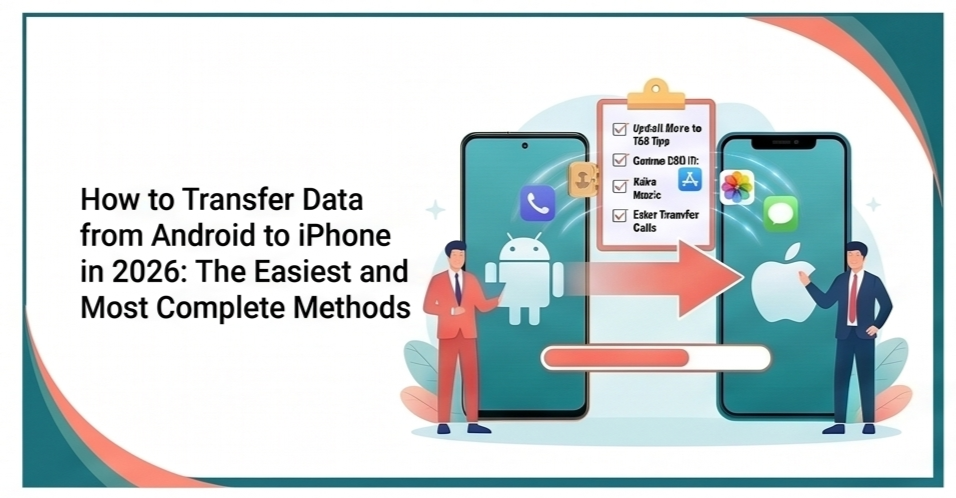

Switching from Android to iPhone has never been smoother. In 2026, Apple’s Move to iOS app supports both lightning-fast wireless transfers and direct USB-C wired connections, while cloud backups and third-party tools handle edge cases with zero hassle.
Whether you’re moving from a Samsung Galaxy, Google Pixel, OnePlus, or any other Android device to the latest iPhone, this guide covers every proven method. You’ll learn exactly what transfers automatically, how long it takes, and what to do if your iPhone is already set up. Follow these steps and you’ll have your entire digital life on your new iPhone in under 30 minutes — with no data left behind.
Why Data Transfer Is Simpler Than Ever in 2026
Apple and Google have worked together under EU regulations and user feedback to improve cross-platform migration. The Move to iOS app now supports USB-C wired transfers on compatible devices, dramatically speeding up the process for large photo libraries or video collections. WhatsApp chats transfer more reliably, and free apps available on both stores are suggested automatically during setup.
Official Apple support confirms the process works on any Android running version 4.0 or newer and any iPhone on iOS 19 or later. Most users complete the transfer without losing a single contact, message, or photo.
What Data Transfers Automatically (and What Doesn’t)
Move to iOS handles the heavy lifting:
Fully transferred
- Contacts and call history
- Message history (SMS, MMS, iMessage-ready)
- Camera photos, videos, and photo albums
- WhatsApp messages and media
- Web bookmarks
- Mail accounts and calendars
- Files and folders
- Accessibility and display settings
- Some free apps (if available on the App Store)
Not transferred automatically
- Paid apps (you’ll need to repurchase)
- Local music files (use cloud services instead)
- Certain app-specific data or logins
- Passwords (handled by your password manager)
Knowing these limits helps you prepare backups for anything that needs manual handling.
Preparing Both Devices: Essential Checklist Before You Start
Success starts with preparation:
- Charge both phones to at least 50% and keep them plugged in during transfer.
- Connect both to the same strong Wi-Fi network (or use USB-C cable for wired).
- Update your Android to the latest version and install the free Move to iOS app from Google Play.
- Back up your Android to Google Drive as a safety net.
- Make sure your iPhone is on the initial “Hello” setup screen (if already set up, you’ll need to erase it or use manual methods).
These five minutes of prep prevent 90% of transfer interruptions.
Method 1: Apple’s Move to iOS App – The Official and Fastest Way
This remains the recommended route for most people in 2026.
Wireless Transfer Steps
- On your new iPhone, continue the setup process until the “Transfer Your Apps & Data” screen appears.
- Tap From Android.
- On your Android, open the Move to iOS app, tap Continue, and agree to terms.
- Type in the 6-digit or 10-digit verification code displayed on your iPhone.
- Select the data categories you want to transfer.
- Tap Continue and wait — both screens show a progress bar. Keep devices close and untouched.
Wired Transfer Option (Faster for Large Files)
In 2026, simply connect both phones with a USB-C to USB-C cable when prompted. The process is identical after that, but data moves significantly quicker without relying on Wi-Fi.
The transfer usually finishes in 10–45 minutes depending on data size.
What Happens After the Transfer Completes
Your iPhone will restart and finish setup. You’ll be prompted to sign in with your Apple ID. Most transferred apps will appear on your home screen, and your photos will start syncing to iCloud if enabled. Sign back into WhatsApp to restore full chat history.
Troubleshooting Common Move to iOS Problems
- Code not appearing or won’t accept → Restart both devices and ensure they’re on the same Wi-Fi.
- Transfer stuck or incomplete → Check available storage on iPhone; move large files manually if needed.
- Wi-Fi drops → Switch to wired USB-C connection.
- WhatsApp not transferring → Ensure the latest WhatsApp version is installed on both phones and follow in-app prompts after setup.
Apple’s support page confirms these fixes resolve most issues reported in early 2026.
Method 2: Manual Transfer for Already-Setup iPhones
If your iPhone is already configured, you don’t need to erase it. Use these targeted cloud methods:
Photos and Videos → Upload to Google Photos on Android, then download via the Google Photos app on iPhone (or enable iCloud Photos).
Contacts and Calendar → Sync to your Google account on Android, then add the same Google account on iPhone under Settings → Contacts/Calendars.
Messages → Use the free “SMS to iMessage” tools or third-party apps like iMazing for full history.
Files and Documents → Google Drive or OneDrive works seamlessly across both platforms.
This approach gives you full control and works without resetting your new phone.
Samsung-Specific Transfer with Smart Switch
Samsung Galaxy owners have an extra option:
- Open Smart Switch on your Galaxy.
- Select Send data → Wireless or Cable.
- On iPhone, choose Receive data during setup or use the manual route. Smart Switch often transfers additional Samsung-specific data that Move to iOS might miss.
Third-Party Tools Worth Considering in 2026
For complex transfers or extra features:
- GlideX → Wireless alternative praised for speed and no-reset option.
- AnyTrans or Dr.Fone → Paid but excellent for selective transfers and already-set-up iPhones.
These tools are useful backups but are rarely necessary if you follow the official Move to iOS route.
Post-Transfer Checklist: Make Your New iPhone Feel Like Home
- Sign in to all your accounts (Google, WhatsApp, banking apps).
- Enable iCloud Backup and Photos.
- Update all apps from the App Store.
- Set up Face ID or Touch ID.
- Restore any passwords from your manager.
- Test key apps like Messages and Camera.
Spending 10 minutes here prevents small annoyances later.
Samsung, Pixel, and Other Android Users: Device-Specific Tips
- Samsung → Smart Switch + Move to iOS combo gives the most complete results.
- Google Pixel → Pure Android experience pairs perfectly with Move to iOS.
- OnePlus / Xiaomi → Stick to Move to iOS; wired USB-C works especially well on these models.
Future-Proof Your Data with Smart Backups
Before any switch, enable Google One backup on Android and iCloud on your new iPhone. This ensures photos, contacts, and messages stay safe even if the one-time transfer has minor hiccups.
Your New iPhone Is Ready- Enjoy the Switch
Transferring data from Android to iPhone in 2026 is faster, more reliable, and more flexible than ever. Whether you choose the official Move to iOS app with its new wired support or a quick manual cloud backup, you can move your entire digital life without stress or data loss.
Take a deep breath, follow the steps that match your situation, and you’ll be up and running on your new iPhone in no time. Welcome to iOS — you’re going to love it here.
FAQ
Do I need to reset my iPhone to use Move to iOS?
Yes — the app works during initial setup. If your iPhone is already set up, use manual cloud methods or erase and restart setup.
How long does the transfer take?
Usually 10–45 minutes. Large photo libraries or videos take longer; wired USB-C speeds it up significantly.
Will my WhatsApp chats transfer?
Yes — messages and media transfer automatically when you follow the prompts.
Can I transfer paid apps?
No — you’ll need to repurchase them from the App Store, but many free alternatives exist.
What if the transfer gets interrupted?
Restart the process. Your data on Android remains safe; only completed items move to iPhone.
Does Move to iOS work on any Android phone?
Yes — as long as it runs Android 4.0 or newer.
Is there a wired option in 2026?
Yes — USB-C to USB-C cable support makes transfers much faster for big files.
Will my passwords and logins transfer?
Not automatically. Use your password manager to export and import them manually.
