


Windows Update Assistant remains Microsoft’s trusted solution when the built-in Windows Update service fails to deliver the latest feature update. In 2026, with Windows 11 version 25H2 as the current release, this tool (officially branded as Windows 11 Installation Assistant on the download page) lets you manually download and install major updates without waiting for automatic rollout.
Whether your PC is stuck on an older build, shows update errors, or you simply want the newest features and security patches immediately, the Windows Update Assistant provides a reliable workaround. This comprehensive guide walks you through everything you need to know — from downloading the tool safely to completing the update process — using the most current 2026 methods straight from Microsoft’s official documentation.
What Exactly Is the Windows Update Assistant and Why Use It?
The Windows Update Assistant is a lightweight, official Microsoft executable that bypasses the standard Windows Update settings. It directly connects to Microsoft servers, checks your device’s compatibility, downloads the latest feature update package (such as 25H2), and installs it in the background.
Unlike waiting days or weeks for the automatic push, the assistant gives you control. Microsoft recommends it specifically when: your device hasn’t received the latest feature update through normal channels, you see persistent error codes (0x80070002, 0x800f0922, etc.), or you’re upgrading from Windows 10 to Windows 11 on a supported PC. In 2026, it’s still the fastest way to get the newest capabilities like enhanced AI features in Copilot+ PCs and improved security baselines.
Key Differences Between Windows Update Assistant and Regular Windows Update
Regular Windows Update runs automatically in the background and can be delayed by your hardware manufacturer, network policies, or temporary rollout waves. The Windows Update Assistant forces the process immediately and is designed for one-time manual intervention. It does not replace the normal update service — after using it, your PC will continue receiving monthly cumulative updates through Settings → Windows Update as usual.
Official Download: Where to Get the Windows Update Assistant Safely in 2026
Always download directly from Microsoft to avoid malware.
- Open your browser and visit the official page: https://www.microsoft.com/en-us/software-download/windows11
- Scroll to the Windows 11 Installation Assistant section (still commonly referred to as Windows Update Assistant in support articles).
- Click the Download Now button.
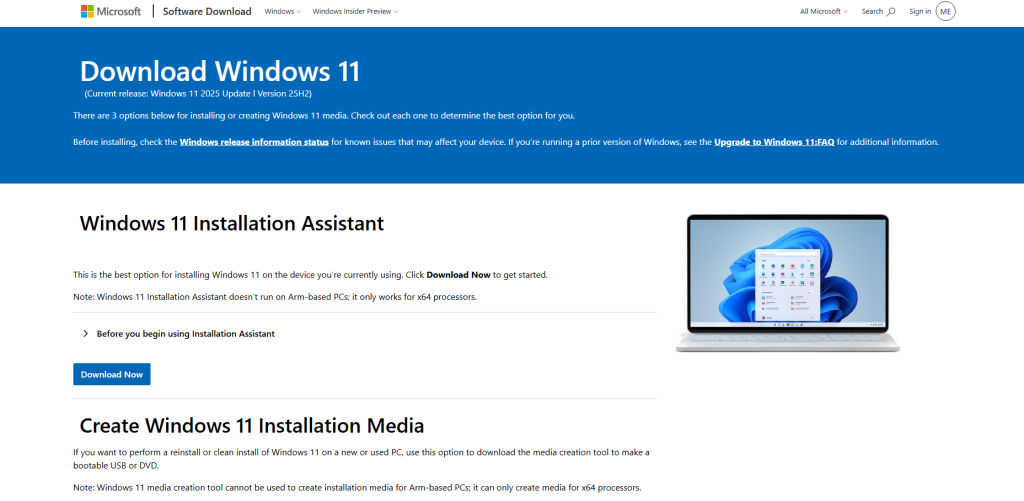
The file is named Windows11InstallationAssistant.exe and is only about 4 MB. Save it to an easy-to-find location like your Downloads folder. Never use third-party sites claiming to offer “updated” versions.
Preparing Your PC Before Running the Windows Update Assistant
A successful update starts with preparation:
- Back up important files using OneDrive or an external drive.
- Plug in your laptop and ensure a stable internet connection (at least 20 Mbps recommended).
- Close all running programs and disable antivirus temporarily if it interferes.
- Make sure you’re logged in as an administrator.
Microsoft also recommends running the PC Health Check app first (linked on the download page) to confirm your device meets Windows 11 requirements.
Step-by-Step: How to Run the Windows Update Assistant
Once downloaded:
- Double-click the Windows11InstallationAssistant.exe file.
- If prompted by User Account Control, click Yes.
- Accept the license terms and click Accept and install.
- The assistant will check your hardware compatibility and current Windows version.
- It then downloads the full feature update package (this can take 30–90 minutes depending on your internet speed).
- The PC will restart several times during installation.
Do not interrupt the process — the screen may go black or show the Windows logo for extended periods. Your files and apps will be preserved in almost all cases.
What Happens During and After the Update Process
While the assistant works, it verifies the downloaded files for integrity, applies the new build, and configures new features. After the final restart, you’ll land on the updated Windows 11 desktop with the latest version (25H2 or newer in 2026).
Check your version by pressing Windows key + R, typing winver, and pressing Enter. You should now see the current release listed.
Using the Windows Update Assistant on Windows 10 Devices
If you’re still on Windows 10, the same tool (sometimes labeled Windows 10 Update Assistant on older support pages) can upgrade you to Windows 11 if your hardware qualifies. The process is identical — just download from the Windows 11 page. Note that Windows 10 support officially ended in 2025, so upgrading is strongly recommended for security reasons.
Troubleshooting Common Windows Update Assistant Errors
Encountering issues? Here are the most frequent fixes in 2026:
- Download stuck or fails: Clear the SoftwareDistribution folder and retry.
- Compatibility error: Update your BIOS/UEFI and drivers from the PC manufacturer’s site.
- Error 0xC1900101: Free up at least 20 GB of space and disable third-party antivirus.
- Tool won’t launch: Run it as administrator or in compatibility mode for Windows 11.
Microsoft’s support page includes a dedicated troubleshooter you can run alongside the assistant.
Advanced Tips for Power Users and IT Professionals
For organizations or multiple PCs, you can run the assistant silently using command-line switches:
Windows11InstallationAssistant.exe /quietinstall /skipeula /auto upgrade
This is especially useful when deploying via Intune or SCCM. Always test on a single device first.
Security and Privacy Considerations When Using the Tool
The Windows Update Assistant only downloads signed Microsoft packages and does not collect personal data beyond standard diagnostic information (which you can opt out of). It is digitally signed and verified by Microsoft, making it one of the safest update methods available.
How the Windows Update Assistant Compares to ISO and Media Creation Tool
The assistant is the simplest for in-place upgrades. The Media Creation Tool creates bootable USB media (better for clean installs or multiple PCs), while an ISO file offers the most flexibility. Use the assistant when you want the quickest path without extra steps.
Keeping Your PC Updated After Using the Assistant
After a successful run, return to Settings → Windows Update and enable automatic updates. Microsoft releases monthly Patch Tuesday updates and occasional optional feature packs — checking manually once a month keeps everything current.
Finally
The Windows Update Assistant continues to be an essential tool in 2026 for anyone facing delayed or failed Windows updates. By following the straightforward download and installation steps outlined above, you can quickly bring your Windows 11 or Windows 10 PC up to the latest secure and feature-rich version without relying on automatic timing.
Whether you’re resolving stubborn update errors or simply want the newest improvements immediately, this official Microsoft tool delivers reliable results with minimal risk to your data and settings. Download it directly from Microsoft’s site, prepare your PC, and let the assistant handle the rest — your device will thank you with better performance, enhanced security, and the latest Windows capabilities.
Frequently Asked Questions
Is Windows Update Assistant the same as Windows 11 Installation Assistant?
Yes. Microsoft uses both names interchangeably in 2026 documentation, but the executable is the same tool available on the official Windows 11 download page.
Does the Windows Update Assistant delete my files or apps?
No. It performs an in-place upgrade that keeps all your personal files, installed programs, and settings intact in the vast majority of cases.
How long does the entire process take?
Download time varies by internet speed (30–90 minutes), plus 20–45 minutes for installation and restarts. Plan for up to two hours total.
Can I use Windows Update Assistant on a work or domain-joined PC?
Yes, but check with your IT administrator first, as group policies may restrict manual updates.
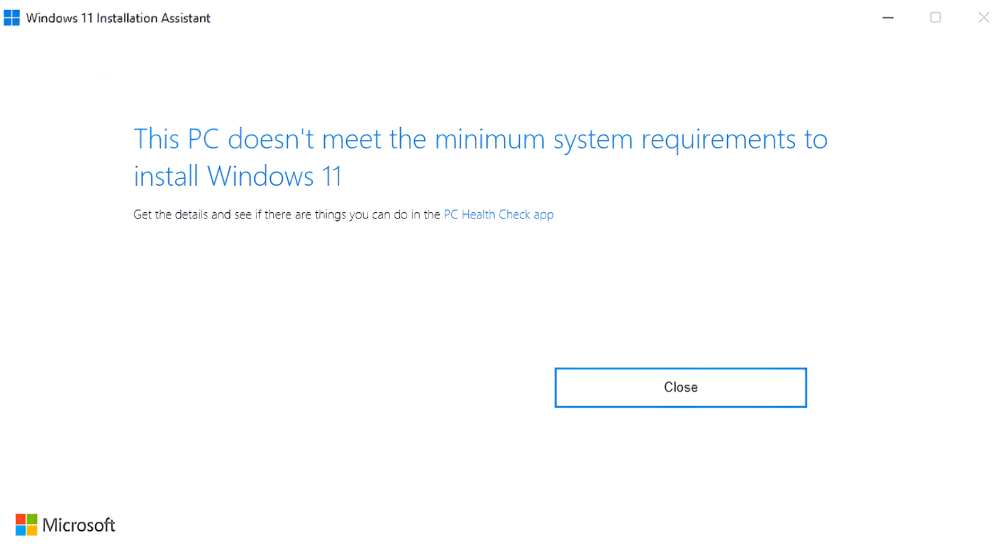
What if my PC doesn’t meet Windows 11 requirements?
The assistant will clearly inform you during the compatibility check. You can still use it to install the latest Windows 10 feature update if applicable.
