



The Windows key (also called the Super key or Win key) is one of the most used shortcuts on any keyboard — opening the Start menu, snapping windows, locking your PC, and launching apps with Win + letter combos. When it suddenly stops working, your entire workflow grinds to a halt.
In 2026, with Windows 11 version 25H2 and the latest security patches, this problem remains surprisingly common after updates, driver conflicts, or accidental setting changes. The good news is that 95% of cases are fixed with simple built-in tools and no extra software. This comprehensive guide gives you every tested method that works right now on both desktops and laptops, including gaming keyboards and 2-in-1 devices.
Common Reasons the Windows Key Stops Responding in 2026
The Windows key can fail for several well-documented reasons:
- Windows Explorer process crashing or freezing
- Sticky Keys, Filter Keys, or Toggle Keys accidentally enabled
- Outdated or corrupted keyboard drivers
- Registry corruption after a Windows Update
- Hardware issues on laptops (Fn lock, membrane damage, or firmware glitch)
- Third-party apps or gaming software overriding the key
Identifying the likely cause helps you jump straight to the right fix instead of trying everything.
Quick Diagnostic Checks You Can Do in 30 Seconds
Before diving into advanced steps, run these rapid tests:
- Press Ctrl + Esc — if the Start menu opens, the physical key is the problem (likely software override).
- Try Win + R to open Run — if nothing happens, the key itself is disabled.
- Test the key in another app like Notepad or an online keyboard tester (keyboardtester.com).
These checks take almost no time and immediately narrow down whether the issue is hardware or software.
Method 1 – Restart Windows Explorer Process (Fastest Fix for Most Users)
Explorer.exe handles the taskbar and Start menu, and it’s the #1 culprit when the Windows key stops working.
- Press Ctrl + Shift + Esc on your keyboard to instantly open Task Manager.
- Find Windows Explorer under Processes.
- Right-click it → Restart.
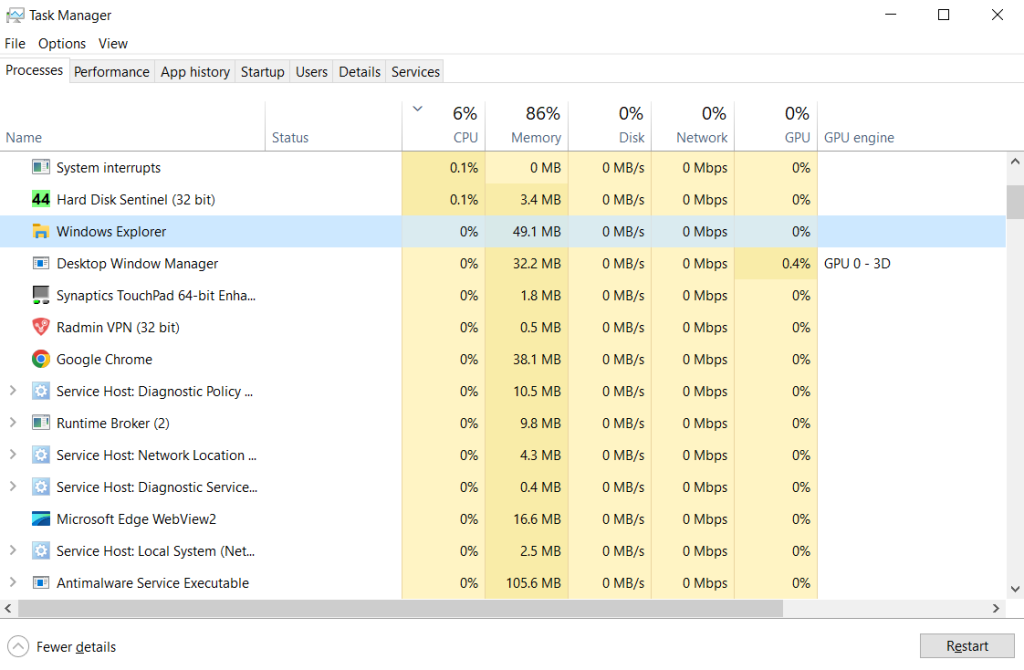
Your screen will flicker for a second, then everything returns to normal. This fix resolves the issue instantly for thousands of users after Windows 11 updates.
Method 2 – Turn Off Sticky Keys, Filter Keys, and Accessibility Shortcuts
Microsoft’s accessibility features can accidentally disable the Windows key when triggered by repeated presses.
- Quickly press the Shift key five times in a row to open the Sticky Keys dialog box.
- Uncheck “Turn on Sticky Keys” and click OK.
- Go to Settings → Accessibility → Keyboard.
- Turn OFF Sticky keys, Filter keys, and Toggle keys.
- Also disable “Use the Print screen button to open screen snipping” if it’s interfering.
Restart your computer and then check whether the Windows key is working properly again.
Method 3 – Run the Built-in Keyboard Troubleshooter on Windows 11
Windows 11’s troubleshooter is smarter in 2026 and often auto-fixes key conflicts.
- Open Settings, then select System, choose Troubleshoot, and click Other troubleshooters.
- Find Keyboard and click Run.
- Let it scan and apply any recommended fixes.
This tool resets keyboard services and clears minor registry glitches automatically.
Method 4 – Update or Reinstall Your Keyboard Driver
Outdated drivers from recent Windows Updates are a frequent trigger.
- Right-click Start → Device Manager.
- Expand Keyboards.
- Right-click your keyboard device (usually “Standard PS/2 Keyboard” or the brand name) → Update driver → Search automatically.
- If no update is found, right-click → Uninstall device → restart your PC.
Windows will reinstall a fresh driver on boot. For gaming keyboards (Razer, Corsair, Logitech), download the latest firmware from the manufacturer’s site instead.
Method 5 – Registry Edit to Re-Enable the Windows Key
If software overrides are the problem, a quick registry tweak restores normal behavior.
- Press Win + R, enter regedit, and then hit Enter.
- Navigate to HKEY_LOCAL_MACHINE\SYSTEM\CurrentControlSet\Control\Keyboard Layout.
- Look for a value named Scancode Map.
- If it exists, right-click and delete it (or rename it as backup).
- Restart your computer.
This removes any custom key remapping that third-party apps may have applied.
Laptop-Specific Fixes for Windows Key Not Working
Laptops often have extra layers of complexity:
- Check for Fn Lock — press Fn + Esc or look for an Fn key light.
- Some models (Dell, HP, Lenovo) require pressing Fn + Windows key to toggle it.
- Update your laptop’s BIOS/UEFI firmware from the manufacturer’s support page.
- On 2-in-1 detachables, re-attach the keyboard firmly and test again.
These hardware toggles resolve the issue for many laptop users in 2026.
Gaming Keyboard and Mechanical Keyboard Troubleshooting
Gaming peripherals often include software that remaps or disables the Windows key to prevent accidental presses during play.
- Open the manufacturer’s app (Razer Synapse, Corsair iCUE, Logitech G HUB, etc.).
- Turn Off Windows Key Disable or Gaming Mode
- Update the keyboard firmware through the same app.
If you’re using a third-party mechanical keyboard, check its DIP switches or onboard profile for Win key lock settings.
Advanced Recovery Options When Nothing Else Works
If the Windows key is still unresponsive:
- Perform a System Restore to a point before the problem started.
- Go to Settings → System → Recovery, then click Reset this PC and choose the Keep my files option.
- As a last resort, run the Windows 11 Installation Assistant for a repair upgrade.
These options preserve your data while fixing deeper system corruption.
Prevention Tips to Stop the Windows Key from Breaking Again
Keep the problem from returning by:
- Avoiding third-party key remappers unless necessary.
- Keeping Windows and keyboard drivers updated automatically.
- Disabling unnecessary startup apps that might interfere with input.
- Using a physical keyboard lock switch on gaming models during intense sessions.
Conclusion
A non-working Windows key can feel like a major productivity killer, but in 2026 it’s almost always caused by a simple software conflict or accessibility setting that you can fix in minutes using the built-in tools and steps above. Start with restarting Explorer.exe or disabling Sticky Keys — these two methods solve the issue for most people instantly.
If you’re on a laptop, check the Fn lock first. For gaming setups, open your keyboard software and turn off gaming mode. Once fixed, the Windows key will work reliably again, restoring all your favorite shortcuts and making Windows 11 feel smooth and responsive.
Try the quickest fix right now and get back to work — your keyboard is ready to cooperate.
Frequently Asked Questions About Windows Key Not Working
Why did my Windows key suddenly stop working after a Windows Update?
Many 2026 updates reset or conflict with keyboard services and accessibility features, causing temporary disablement of the Win key.
Does Ctrl + Esc work as a replacement for the Windows key?
Yes — it opens the Start menu and can be used as a temporary workaround while you fix the physical key.
Is the Windows key not working a hardware or software problem?
In 90% of cases it’s software (Explorer, drivers, or accessibility). Hardware failure is rare and usually affects multiple keys.
Can a virus or malware disable the Windows key?
It’s uncommon but possible with certain keyloggers. Run a full Windows Defender scan to rule it out.
Will resetting Windows 11 fix the Windows key issue?
Yes, the “Keep my files” reset almost always restores normal keyboard function without losing data.
Do mechanical or gaming keyboards have special Windows key locks?
Yes — most have a dedicated Gaming Mode or Win Lock button that disables the key to prevent accidental presses.
How do I test if my physical Windows key is broken?
Use an online keyboard tester or plug in a different keyboard to isolate the problem.
Can I remap another key to act as the Windows key?
Yes — use Microsoft’s PowerToys (free from the Microsoft Store) to remap any key as a temporary replacement.
