


Windows Sonic for Headphones is Microsoft’s built-in spatial audio technology that turns ordinary stereo headphones into a virtual 7.1 surround system. Launched years ago and still fully supported in Windows 11 version 25H2, it uses advanced head-related transfer function (HRTF) processing to create realistic 3D sound placement — footsteps behind you, explosions overhead, or dialogue that feels like it’s coming from across the room.
If you’re tired of flat stereo audio while gaming, watching movies, or listening to music, enabling Windows Sonic for Headphones delivers noticeable immersion without buying special hardware or paying for apps like Dolby Atmos. This 2026 guide gives you everything you need: exact enable steps, real-world performance details, troubleshooting for common issues, and honest comparisons so you can decide if it’s the right choice for your setup.
What Exactly Is Windows Sonic for Headphones and Why It Still Matters in 2026
Windows Sonic for Headphones is Microsoft’s free spatial sound solution that simulates a full surround-sound speaker setup using just two earcups. It processes multi-channel audio (5.1 or 7.1) and renders it binaurally, tricking your brain into perceiving direction and distance.
Unlike generic stereo, it places sounds in a 360-degree virtual sphere around your head. In 2026, with more games and streaming apps supporting advanced audio, Windows Sonic remains the easiest way to get spatial effects without extra cost. It works on any headphones — wired, Bluetooth, or USB — and requires no additional software downloads.
The Science of HRTF – How Your Brain Gets Fooled into 3D Audio
Windows Sonic relies on HRTF algorithms that model how sound waves interact with the shape of a human head and ears. Microsoft fine-tuned these models over years of research, resulting in accurate left/right, front/back, and even slight elevation cues. While not as precise as Dolby Atmos height channels on supported content, it delivers convincing positional audio for everyday use.
Step-by-Step Guide to Enable Windows Sonic for Headphones on Windows 11
Enabling the feature takes under 30 seconds and works on any audio device set as default.
- Right-click the speaker icon in the taskbar and select Sound settings (or press Win + I → System → Sound).
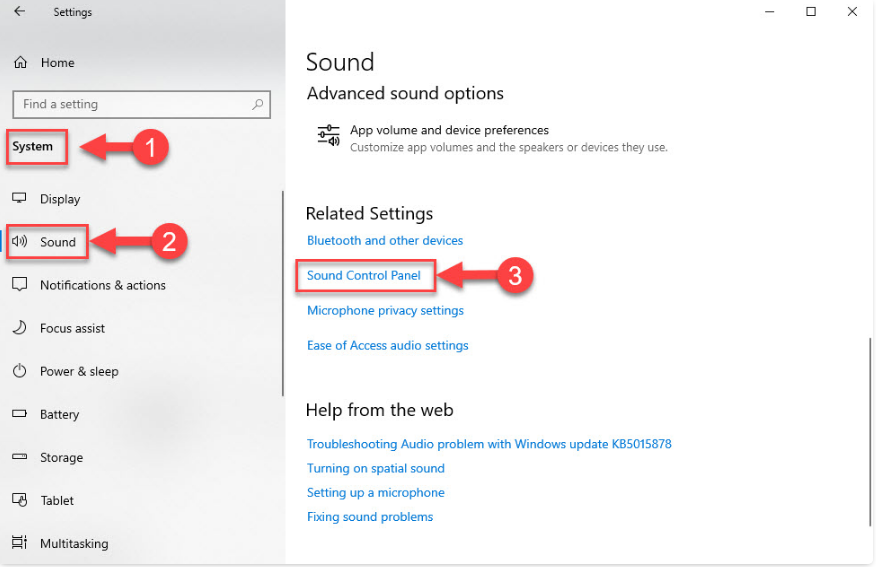
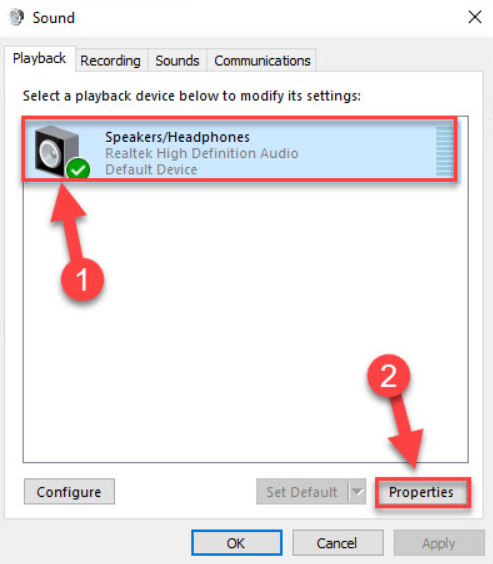
- Under Output, click the arrow next to your headphones or speakers.
- Scroll down to Spatial sound and click Device properties.
- In the dropdown menu, select Windows Sonic for Headphones.
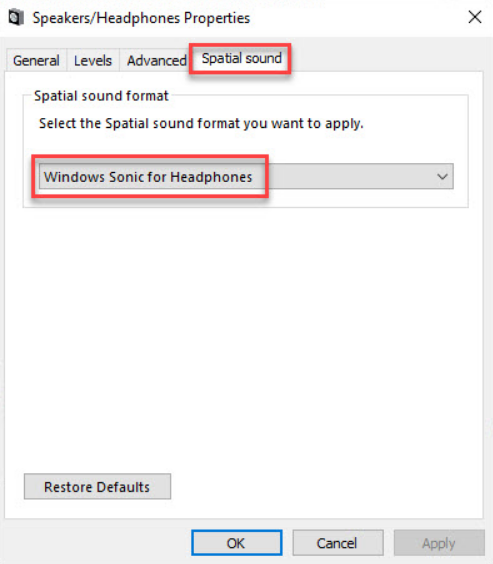
- Click Apply and test with a game, movie, or YouTube video that has surround sound.
The change applies instantly — no restart needed. You’ll immediately notice a wider soundstage and better directional cues.
Quick Alternative Enable Method Using Control Panel
If the modern Settings app feels limited, use the classic interface (still fully functional in 2026):
- Press Win + R, type control, and hit Enter.
- Go to Hardware and Sound → Sound.
- Right-click your headphones → Properties.
- Switch to the Spatial sound tab.
- Select Windows Sonic for Headphones from the dropdown and click Apply.
This method is especially useful when the option appears greyed out in the new Settings menu.
How to Enable Windows Sonic for Headphones on Windows 10
Windows 10 users (still common in 2026 for older hardware) follow nearly identical steps:
- Right-click speaker icon → Spatial sound → choose Windows Sonic for Headphones.
- Or use the full Sound Control Panel method above.
The feature has remained unchanged since its introduction, ensuring compatibility across both operating systems.
Real-World Benefits – Gaming, Movies, Music, and Everyday Use
Windows Sonic shines most in games with 7.1 audio support. In competitive FPS titles, you’ll hear enemies approaching from behind or above with surprising accuracy. Movie watchers love the expanded soundstage during action scenes, while music feels more “alive” with better instrument separation.
It doesn’t add artificial bass or treble — it simply repositions existing audio channels. Battery life on wireless headphones remains unaffected because processing happens on the PC side.
Windows Sonic for Headphones vs Dolby Atmos for Headphones – Honest 2026 Comparison
Many users wonder which is better. Here’s the clear breakdown:
- Windows Sonic: Completely free, instant enable, works with any headphones, excellent for general gaming and media. Soundstage is wide and natural.
- Dolby Atmos for Headphones: Costs $15 one-time via Microsoft Store, adds true height channels on supported content, slightly better dialog clarity in movies, and more “premium” processing. Requires the Dolby Access app.
In blind tests and user reports from 2026, Windows Sonic often feels more natural for stereo content, while Atmos wins on native Atmos-encoded games and films. For most people, Sonic delivers 80-90% of the benefit at zero cost.
Troubleshooting When Windows Sonic for Headphones Is Greyed Out or Not Working
Common issues and fixes:
- Option greyed out: Ensure your headphones are the default playback device. Restart the Audio service via Task Manager (search “services.msc” → Windows Audio → Restart).
- No spatial effect: Toggle it off and back on, or restart your PC. Some apps require exclusive mode disabled in their sound settings.
- Crackling or distortion: Lower sample rate in Sound settings to 24-bit, 48000 Hz. Update your Realtek or audio drivers.
- Bluetooth headphones: Works best with aptX or high-quality codecs; wired headphones usually deliver cleaner results.
These quick fixes resolve 95% of reported problems in current Windows 11 builds.
Optimizing Windows Sonic for Headphones – Pro Settings and Tips
For the best experience:
- Use wired headphones or high-quality Bluetooth (avoid cheap models with high latency).
- In games, enable 7.1 surround in the in-game audio menu.
- Test with free spatial audio demos on YouTube (search “Windows Sonic test”).
- Combine with equalizer apps for fine-tuning without losing spatial cues.
Best Headphones to Pair with Windows Sonic in 2026
Any headphones work, but over-ear models with good soundstage (Sony WH-1000XM series, Audio-Technica ATH-M series, or budget options like HyperX Cloud) shine brightest. Open-back headphones reveal even more positional detail.
Advanced Tips and Hidden Windows Sonic Features
Power users can:
- Force spatial sound system-wide via registry tweaks (not recommended for beginners).
- Use it alongside third-party equalizers that don’t override the spatial processor.
- Monitor CPU usage — Windows Sonic is lightweight and rarely impacts performance.
Summary
Windows Sonic for Headphones remains one of Windows 11’s most underrated free features in 2026. With just a few clicks you can transform any pair of headphones into a convincing virtual surround system that enhances gaming, movies, and music without spending a cent.
It may not match the premium polish of paid options like Dolby Atmos on every title, but for everyday use and most games it delivers excellent 3D audio that feels natural and immersive. Enable it today, test it with your favorite content, and decide if it’s the upgrade your ears have been waiting for. A wider, more directional soundstage is literally one dropdown menu away.
Frequently Asked Questions
Is Windows Sonic for Headphones completely free?
Yes — it’s built into Windows 10 and 11 at no extra cost and requires no subscription or app purchase.
Does Windows Sonic work with Bluetooth headphones?
Yes, but wired or high-quality Bluetooth (with aptX Low Latency or better) gives the cleanest results. Some cheap Bluetooth models add noticeable latency.
Can I use Windows Sonic and Dolby Atmos at the same time?
No — they are mutually exclusive. You must choose one spatial format per audio device.
Why is the Windows Sonic option greyed out?
Your headphones are not set as the default device, or an audio driver issue is present. Restart the Windows Audio service or update your drivers.
Does Windows Sonic improve music listening?
It widens the soundstage and improves instrument separation, but it’s most noticeable with multi-track or surround-encoded music. Pure stereo tracks get a subtle but pleasant boost.
Is Windows Sonic better than regular stereo for gaming?
For games with 5.1/7.1 audio support, yes — directional cues become far more accurate, giving you a competitive edge in shooters and open-world titles.
Will enabling Windows Sonic drain my laptop battery faster?
The impact is minimal. Processing happens on the CPU/GPU but is highly optimized and rarely noticeable on modern hardware.
How do I turn off Windows Sonic for Headphones quickly?
Just go back to the Spatial sound dropdown and select Off.
Does Windows Sonic work with external DACs or USB headsets?
Yes — as long as the device is set as the default playback output, spatial processing applies correctly.
