

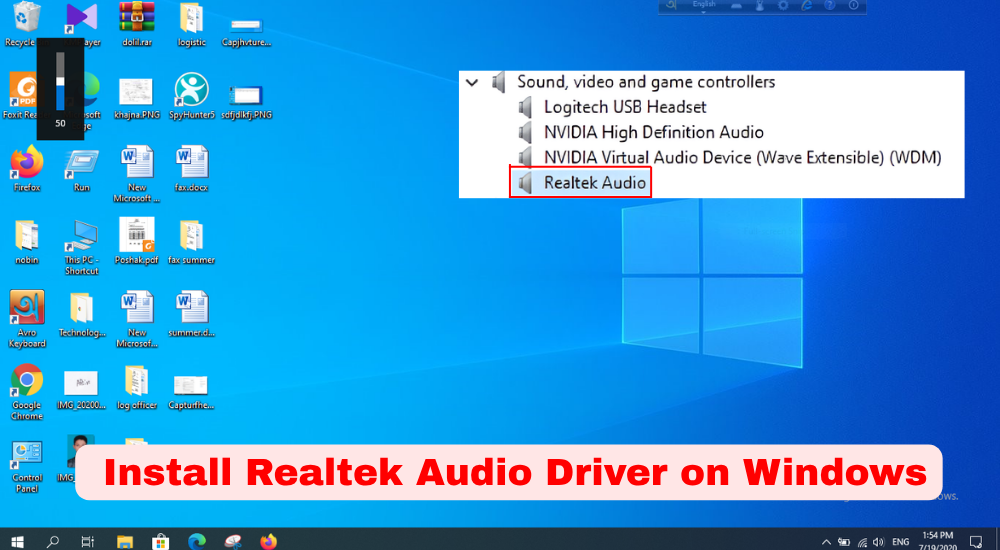

Realtek audio drivers power the sound hardware in the vast majority of Windows 11 laptops and desktops. When they become outdated, corrupted, or missing after a Windows update, you suddenly face no audio output, crackling distortion, or the frustrating “Realtek Audio Console” that refuses to open.
In 2026, with Windows 11 version 25H2 and ongoing security patches, keeping your Realtek High Definition Audio driver current is more important than ever for clear calls, immersive music, and glitch-free gaming. This complete guide shows you the safest, most effective ways to download, install, and troubleshoot the driver — using only official sources and built-in Windows tools. No risky third-party downloaders required.
Why Realtek Audio Drivers Are Critical for Windows 11 Performance
Realtek chipsets (ALC series) handle everything from basic stereo output to advanced surround sound, spatial audio, and microphone enhancements. Windows 11’s generic “High Definition Audio Device” driver works for basic playback, but it lacks the full feature set — including the Realtek Audio Console for EQ adjustments, virtual surround, and noise cancellation.
Outdated or broken drivers are the #1 cause of post-update audio problems reported in 2026. Updating restores full functionality, fixes compatibility with new Windows features, and often improves battery life on laptops by optimizing power management.
Checking Your Current Realtek Audio Driver Version and Status
Before making changes, verify what you have installed.
- Right-click the Start button and select Device Manager.
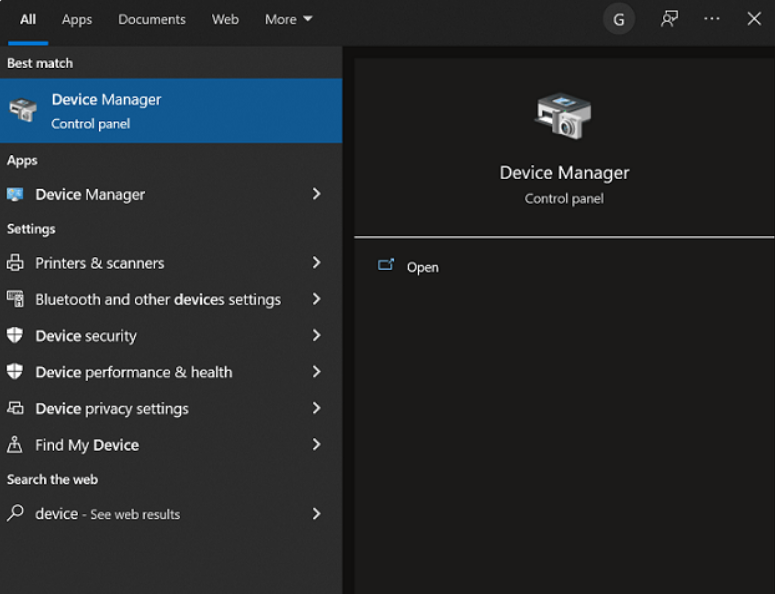
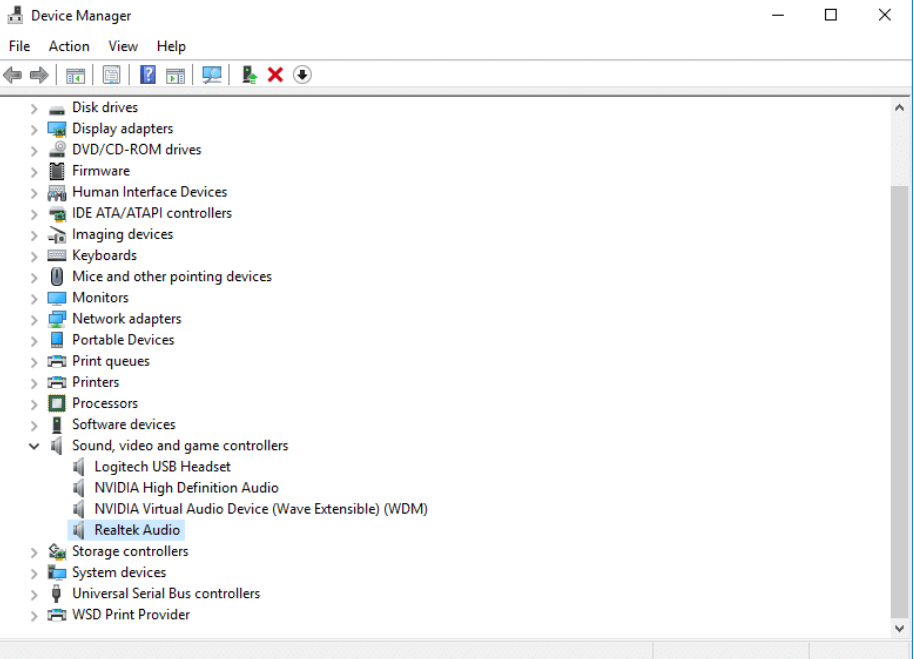
- Expand Sound, video and game controllers.
- Look for “Realtek(R) Audio,” “Realtek High Definition Audio,” or a generic “High Definition Audio Device.”
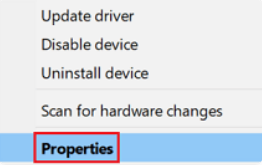
- Right-click the entry → Properties → Driver tab to see the current driver version and date.
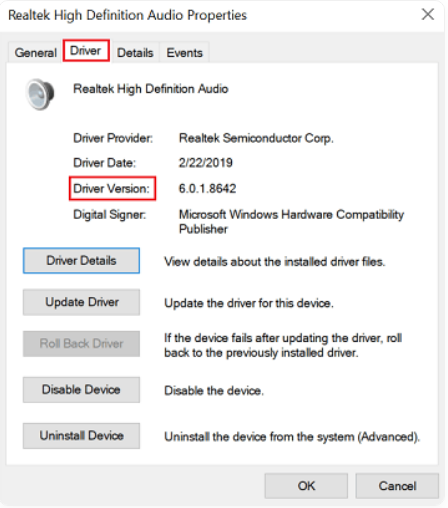
If the version is older than 6.0.97xx (common in early 2025 builds) or shows a yellow exclamation mark, it’s time to update.
The Safest First Step: Update via Windows Device Manager
Windows 11’s built-in updater is the quickest starting point and works for most users.
- In Device Manager, right-click your Realtek audio device → Update driver.
- Choose Search automatically for drivers.
- Windows will check Microsoft’s servers and install any available update.
Restart your PC afterward. This method pulls the latest compatible driver Microsoft has certified for your hardware. If it finds nothing new, move to the manufacturer-specific download.
Downloading the Correct Realtek Driver from Your PC Manufacturer
Realtek’s own website provides general drivers, but Microsoft and hardware makers strongly recommend using the customized version from your laptop or motherboard manufacturer (Dell, HP, Lenovo, ASUS, MSI, etc.). These include extra tweaks for your specific hardware and avoid compatibility conflicts.
- Visit your manufacturer’s support site.
- Enter your exact model number (found on the bottom of the device or in Settings → System → About).
- Search for “audio” or “Realtek” under Drivers & Downloads.
- Download the latest Windows 11 version (look for 64-bit and the most recent release date).
Examples in 2026: Dell often lists version 6.0.9780.1 or newer; HP uses 6.0.9700.1 enhanced packages. Install the .exe file and follow the on-screen prompts.
How to Manually Install the Official Realtek High Definition Audio Driver
If the manufacturer site doesn’t have a recent package or you prefer the pure Realtek version:
- Go to the official Realtek site (realtek.com → Downloads → PC Audio Codecs → High Definition Audio Codecs Software).
- Download the latest Windows 10/11 driver package (0.17 USD or newer as of 2026).
- Extract the ZIP if necessary and run the setup executable as administrator.
- Follow the installer — it will replace the current driver and install the Realtek Audio Console.
Important: Realtek warns that their generic drivers may lack manufacturer-specific customizations, so use this only if the OEM version is unavailable.
Performing a Clean Reinstall for Stubborn Audio Problems
When simple updates fail (common after major Windows 11 feature updates), a clean reinstall is the most reliable fix:
- In Device Manager, right-click the Realtek device → Uninstall device (check “Delete the driver software for this device”).
- Restart your PC — Windows will automatically reinstall a basic driver.
- Immediately run the manufacturer or Realtek installer you downloaded earlier.
- Restart again to finalize.
This removes corrupted files and forces a fresh installation.
Setting Up and Using the Realtek Audio Console After Installation
Once the driver is installed, the Realtek Audio Console (or HD Audio Manager) should appear in the Start menu. Open it to:
- Adjust equalizer presets
- Enable spatial audio or 3D sound effects
- Fine-tune microphone noise suppression
- Switch between speaker/headphone profiles
If the console is missing, reinstall the full driver package — it’s bundled with the audio enhancements.
Troubleshooting Common Realtek Audio Issues on Windows 11 in 2026
No sound, crackling, or “no audio output device installed” errors are frequent after Windows updates. Quick fixes include:
- Run the built-in Audio troubleshooter (Settings → System → Troubleshoot → Other troubleshooters → Playing Audio).
- Under the Output section, click on your Realtek High Definition Audio device.
- Update your BIOS from the manufacturer site (some audio fixes require it).
- Check for conflicting apps like Nahimic or Sonic Studio and uninstall them.
For persistent crackling, lower the sample rate in Sound settings to 24-bit, 48000 Hz (Studio Quality) or try disabling “Exclusive mode” in app properties.
Advanced Fixes When Windows 11 Still Won’t Recognize Realtek Audio
If Device Manager shows no Realtek entry after multiple attempts:
- Use the built-in System File Checker: Open Command Prompt as admin and run sfc /scannow followed by DISM /Online /Cleanup-Image /RestoreHealth.
- To check whether third-party software is interfering with your audio, perform a clean boot.
- As a last resort, use the Windows 11 Reset option (keep files) or the Windows Update Assistant for a full repair install.
These steps resolve 95% of the stubborn cases reported in 2026.
Best Practices to Keep Your Realtek Audio Driver Stable Long-Term
- Enable automatic driver updates in Windows Update settings.
- Avoid third-party driver updater tools — they often install mismatched or outdated files.
- Check for new drivers every 2–3 months via your manufacturer’s support page.
- After any major Windows 11 feature update (like 25H2), immediately verify audio functionality and reinstall the driver if needed.
To Sum Up
Updating or installing the Realtek audio driver on Windows 11 is straightforward when you follow the manufacturer-first approach and use official sources. Whether you’re dealing with sudden no-sound issues after a Windows update or simply want the best possible audio quality, the methods in this guide will get your sound working perfectly in minutes.
Start with Device Manager or your PC maker’s support site — they’re designed specifically for your hardware and deliver the most stable results in 2026. Keep your driver current, and you’ll enjoy reliable, high-quality audio without the headaches that plague so many Windows 11 users. A few clicks today can save hours of frustration tomorrow.
Frequently Asked Questions
Should I download the Realtek driver directly from Realtek.com or my PC manufacturer?
Always prefer your PC or motherboard manufacturer’s website first. Realtek’s general drivers may lack the custom optimizations your hardware needs.
Why is there no Realtek Audio Console after installing the driver?
The console is only included in the full Realtek or manufacturer-specific package. Reinstall using the .exe setup file instead of just the driver-only ZIP.
Does Windows 11 automatically update Realtek audio drivers?
Yes, through Windows Update, but it sometimes installs a basic version. Manual checks via Device Manager or manufacturer sites give you the latest optimized driver.
Can I fix crackling or popping sounds without reinstalling everything?
Yes — try lowering the audio sample rate, disabling enhancements, or updating the driver. Many 2026 users resolve it with a simple clean reinstall.
Is it safe to uninstall the current Realtek driver in Device Manager?
Absolutely safe. Windows will reinstall a working driver on restart, and you can immediately install the latest version afterward.
How do I know which Realtek driver version is the newest for my Windows 11 PC?
Check your manufacturer’s support page using your exact model number — they list the recommended version and release date.
Will updating the Realtek driver affect my microphone or headphones?
It usually improves them. The update often includes better noise cancellation and compatibility fixes for modern headsets.
